
Dressing Room Rental List
View the outfits you can rent from the Dressing Room. Each outfit shows its cost for each rental period and its extension cost.
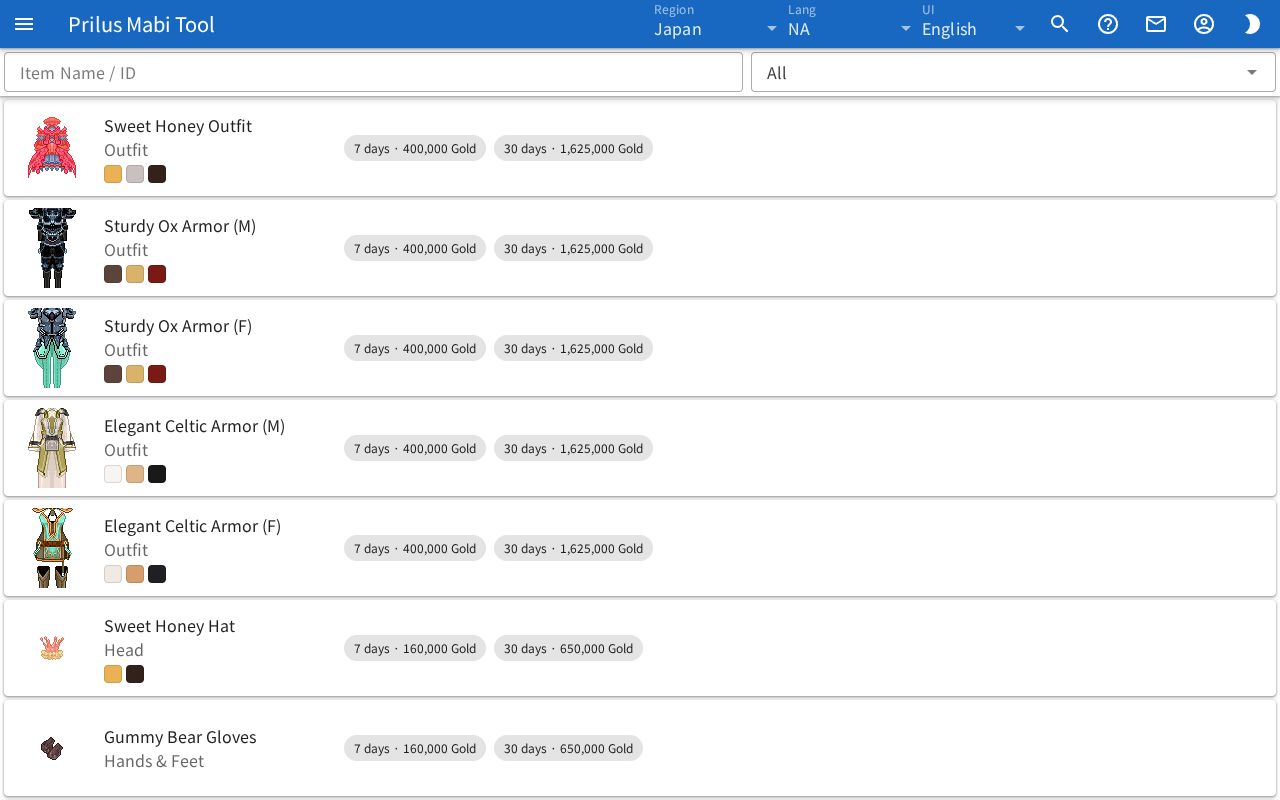
Screen layout
- At the top are the Item Name / ID search box and the category selector.
- Below them is the list of outfits you can rent. Each row shows one outfit.
- From the left, each row has the item image, the name and category, the rental cost, and the extension cost.
Basic use
- Type an outfit name or item ID in the Item Name / ID box.
- Pick a category in the category selector to keep only outfits in that category.
- Check the rental periods and costs in the row of the outfit you found.
Finding outfits
- Item Name / ID: Type a name or item ID to show only matching outfits.
- Category selector: It starts as All. Only the categories in the list among Outfit, Head, Hands & Feet, Robe, Motion, Balloon, Service, and Other appear.
- If you use both boxes, only outfits that match both filters stay.
What each row shows
- The outfit's category is shown below its name.
- Outfits with set colors show those colors as small boxes below the category.
- Rental costs are shown one by one in small tags. The period and cost are shown together, such as "○ days · ○ Pon". Entries with no period show only the cost.
- Costs are shown in Pon. Entries with no Pon cost are shown in Gold.
- Some costs have x and a number after them.
- Outfits that can be extended show the added period and cost after Extend, such as "+○ days · ○ Pon".
Hover over an item image to see its name. Click it to open the item menu. Menu entries differ by item. See Item menu for details.
Good to know
- In regions that do not use Dressing Room rentals, the notice "This feature is not used in this region." appears.