
View Miniatures in 3D
A page that gathers Mabinogi miniatures in one place. Each miniature shows its type, auction house lowest price, and stats, and you can preview its model in 3D.
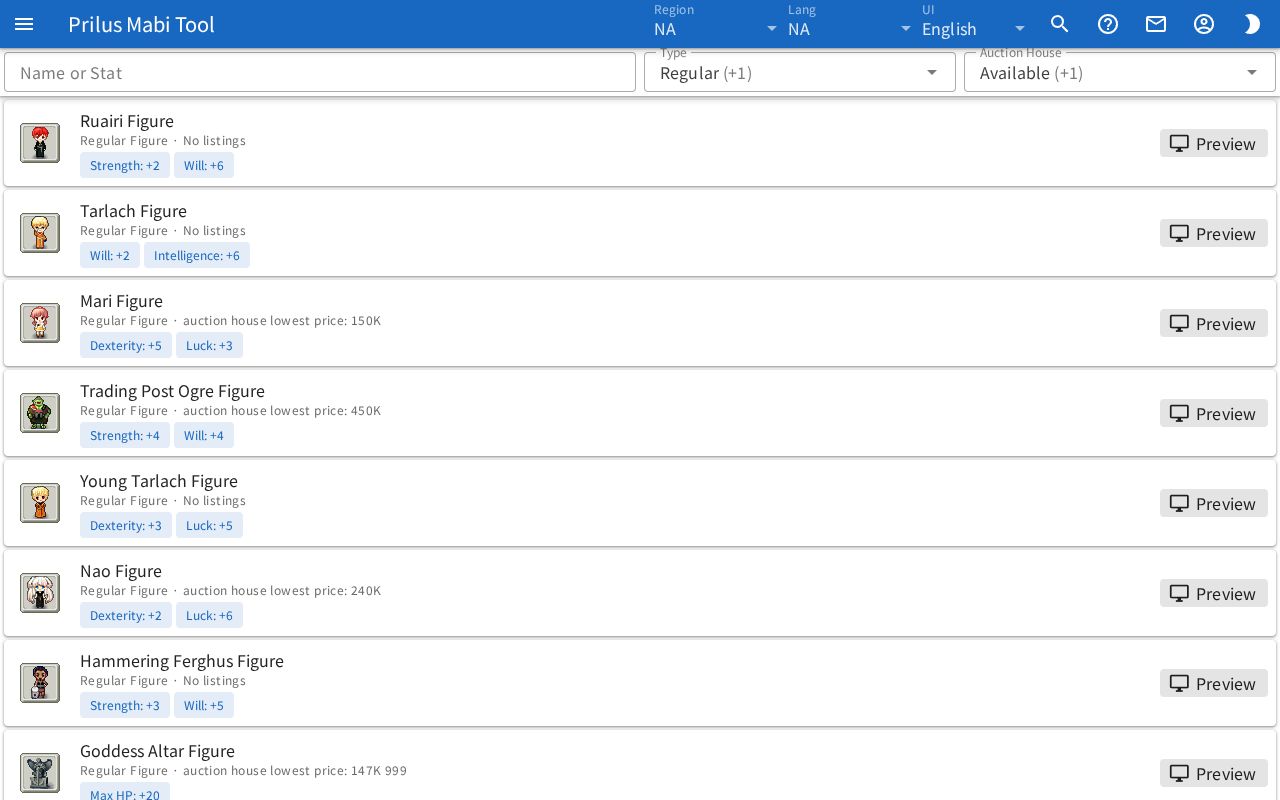
Screen layout
- At the top are the Name or Stat search box, the Type box, and the Auction House box.
- Below that is the miniature list. Each row shows one miniature.
- On the left of each row is the miniature image.
- To the right of the image are the name, below it the type and price, and below that the stat tags.
- At the far right of each row is the Preview button. On a narrow screen, only a monitor icon appears.
Basic use
- Enter a miniature name or stat name in the Name or Stat box.
- If needed, choose conditions in the Type and Auction House boxes.
- Check the miniature's stats and price in the list.
- To see its model, press Preview on the right of the row or the image on the left.
Finding miniatures
- Name or Stat: enter a miniature name or stat to see only matching miniatures. Part of a name also works. Korean names can also be found by their Hangul initial consonants. Press the × on the right to clear it.
- Type: choose from Regular and Sequel. You can choose both.
- Auction House: choose from Available and Not Available. You can choose both. Miniatures that can be traded on the auction house are Available.
- Type and Auction House both start with everything chosen. Even if you choose nothing, all are shown.
- What you choose in Type and Auction House is saved in this browser. It stays the same the next time you open the page.
- If no miniature matches, "Nothing matches." appears.
Viewing miniature info
- Under the name, Regular Figure or Sequel Figure appears.
- The price appears next to it. If there is a lowest price, auction house lowest price and the value appear. If not, one of No listings, Not on auction, or No price data appears.
- Below that, the stats appear as small tags in the form "stat: +value".
Preview window
Press Preview or a miniature image to open a window named after the miniature.
- The top shows the miniature's model in 3D. Miniatures without a model show only the info below.
- The bottom shows the miniature item image, name, type and price, stats, and description.
- Hover over an item image to see its description. Click it to open the item menu. Menu entries differ by item. See Item menu for details.
- Press the JSON button to the right of the name to open the "homestead housing item ○○ ID" window. The miniature's detailed info appears as a list you can expand.
3D view controls
- Drag with the left mouse button to rotate. Drag up and down with the right button to change the viewing height.
- Scroll the wheel to zoom in or out.
- On a touch screen, drag with one finger to rotate, and spread or pinch two fingers to zoom in or out.
Buttons at the top of the 3D view
The buttons are at the top right. Some don't appear depending on the model.
- Film button: saves the current view as a GIF. While it is being made, a progress indicator spins on the button.
- Tree button: opens the Hierarchy panel. The parts that make up the model appear as a list. Expand and collapse with the arrows. Press the eye button to hide a part or show it again.
- Eyedropper button: opens the Color Modify panel. Each part whose color can be changed has a color box. Press a color box and pick a color to apply it right away.
- Three-line button: opens the Render Settings panel. Change view settings such as the light, background color, sky, map, shadows, and GIF capture size. Its options are the same as Render Settings in the Character Simulator help.
Press the × at the top right of an open panel to close it.