
Achievement List and Checklist
Browse achievements by category. When you check off achievements you earned, bars show how many and how many points you collected in each category.
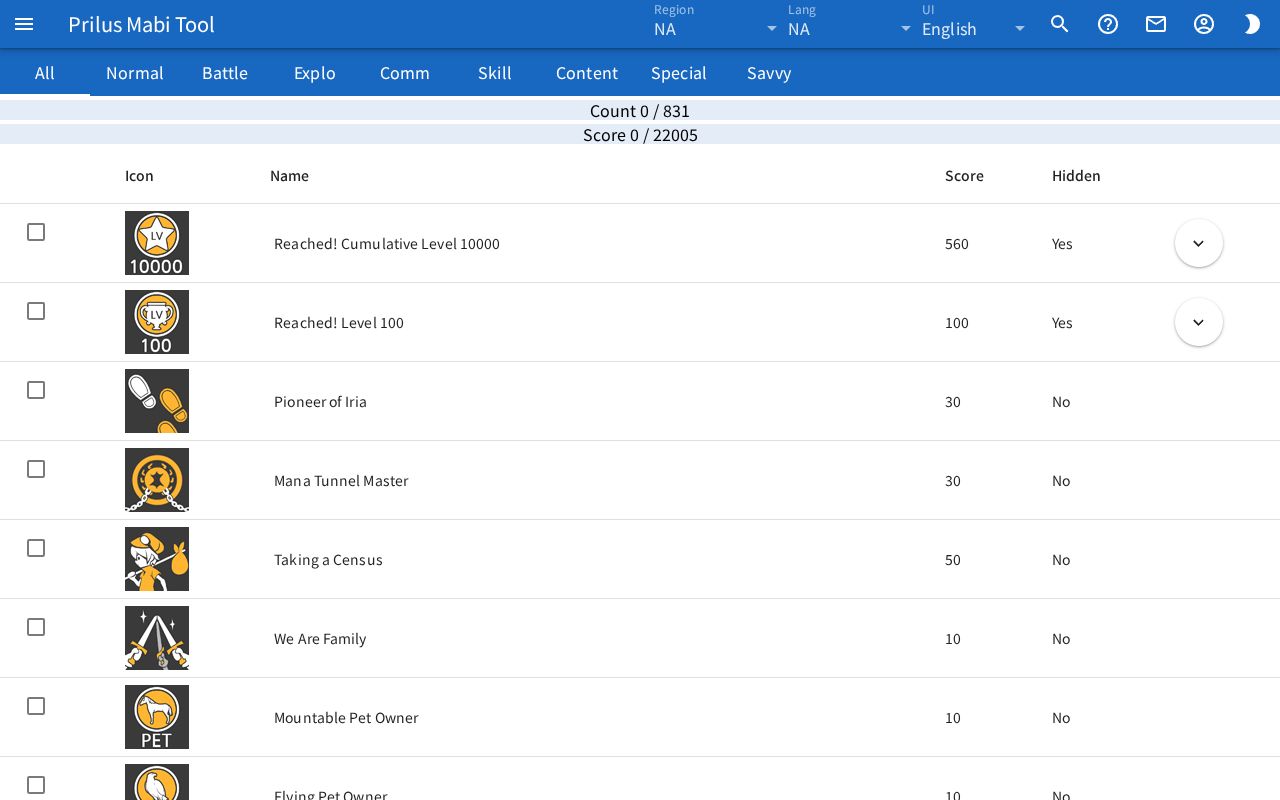
Screen layout
- At the top are the achievement category tabs. The first tab, All, shows achievements from every category.
- Below that are two progress bars: Count and Score.
- Below that is the achievement table. It has a checkbox, Icon, Name, Score, Hidden, and an expand button, in that order.
Basic use
- In the category tabs, press the category to view.
- Press the checkbox on the row of an achievement you earned. Press it again to uncheck it.
- Check the progress of the current category in the Count and Score bars.
- Press an achievement name or hover over it to see its hint and description.
Achievement table
- Name: press the name button, hover over it, or move to it with the keyboard (Tab) to see its hint and description.
- Score: the achievement's score. For achievements with earlier stages, it includes the scores of the earlier stages.
- Hidden: Yes for hidden achievements, No otherwise.
Achievements with stages
For achievements with earlier stages, only the last stage appears in the table, with an expand button at the end of the row.
- Press the expand button to show the earlier stage achievements in the rows below. Press it again to collapse them.
- Press the checkbox of the last stage to check or uncheck it together with all earlier stages.
- The checkbox on an expanded earlier stage row changes only that achievement.
- When checking also changes earlier stage achievements, the message "Also changed ○ prerequisites." appears with an Undo button. Press it to go back to before the change.
- When the earlier stages and the last stage are a mix of checked and unchecked, the last stage's checkbox shows a dash in the middle.
Progress
- Count: the number of checked achievements in the current category / the total number of achievements. Earlier stage achievements are each counted as one.
- Score: the total score of checked achievements in the current category / the total score.
Tabs and address
- When you press a tab, that category is added to the address. Open the page at this address to open that category tab right away.
- If the category in the address can't be found, the notice "achievement category ○ not found" appears and you go back to the All tab.
Good to know
- What you check is saved in this browser. It stays the same the next time you open the page.