
View Item Color Tables
Find item color tables and view their palettes. Pick a color to see whether it is in the table, how many cells have it, and which colors are similar.
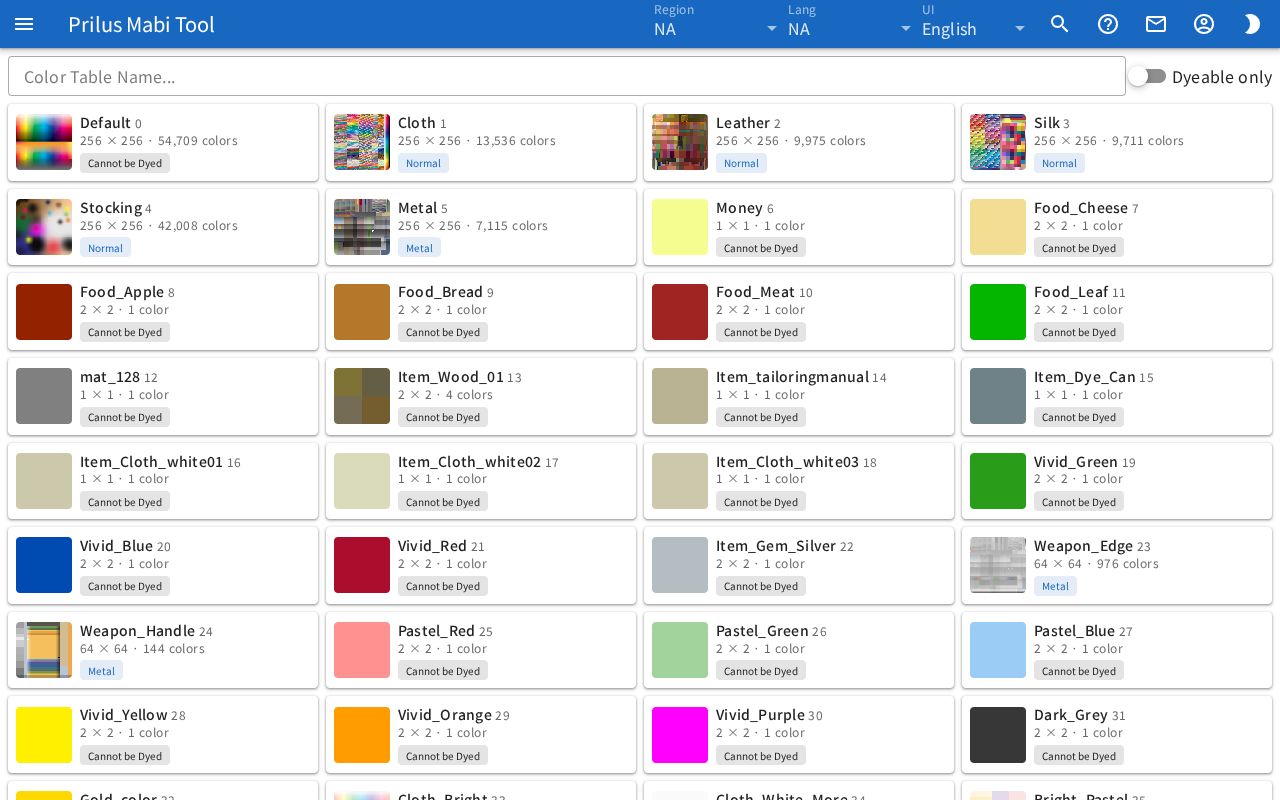
Screen layout
At first you see the color table list. Press one to switch to that color table's screen.
- List screen
- At the top are the Color Table Name... search box and the Dyeable only switch.
- Below that, the color tables appear side by side as cards.
- Color table screen
- The top row has the Back button, name, ID, dye type, size, and color count.
- Below that, from the left, are the palette, the color picker, and the results. On a narrow screen they are stacked top to bottom.
Basic use
- Enter a color table name or ID in the search box.
- Press a card in the list.
- Press a color on the palette, or set a color in the color picker in the middle.
- Check whether In this palette on the right says Yes or No.
- Press Back to return to the list.
Finding color tables
- Color Table Name...: enter a name or ID to keep only matching ones. Press the × on the right of the box to clear it.
- Dyeable only: turn it on to leave out color tables that are Cannot be Dyed.
- If nothing matches, "Nothing matches." appears.
Each card shows the following info.
- The palette image, name, and ID
- The width × height cell count and ○ colors
- The dye type: one of Cannot be Dyed, Normal, and Metal.
With a keyboard, move to a card with the Tab key and press Enter to open it.
Palette
The palette appears large on the left of the color table screen.
- Hover over the palette to see the color value and cell count of that color below it.
- When you aren't hovering, the hint "Click the palette to pick a color" appears.
- Press the palette to pick that color.
- If the picked color is in this table, the other cells are darkened, and only the cells with the picked color show that color.
- If there is no palette image, "Palette image not found" appears.
Picking a color
In the middle is the color board. The starting color is white.
- Pick a color on the board or enter RGB or HEX values.
- Press the round arrow button on the right of the A tab to go back to white.
- Press the + button at the bottom to add the current color to the list. You can pick an added color again from the middle area. The − button removes that color from the list.
- Added colors are saved in this browser.
Viewing results
The results for the picked color appear on the right.
- In this palette: shows Yes if the picked color is in this color table, and No if not.
- If it is Yes, "○ of ○ cells" below it shows how many of all cells have that color. The ratio appears in parentheses.
- Similar colors: up to 12 colors in this table that are close to the picked color.
- Hover over a color cell to see the color value and cell count.
- Press a color cell to pick that color.
Items that use this table
- If any dyeable items use this color table, a Used by ○ items button appears at the end of the top row. If no items use it, there is no button.
- Press the button to open the "applied items for (color table name) (ID)" window.
- In the window, you can search with Item Name and filter with Tradable only and Favorites only. Click an item image to open the item menu. See Item menu for details.
Sharing by link
- When you open a color table, the address changes to that color table's address. Open that address to go straight to that color table's screen.
- The picked color is kept in the address too. Share the link to open it with the same color picked.
- If the color table in the address can't be found, the notice "Color table ○ not found" appears. Press × to close it.