
Listen to Music Scores
Listen to Mabinogi music scores with in-game instrument sounds. Enter a score to play it and see its tracks, note count, length, and the Composing rank needed for it.
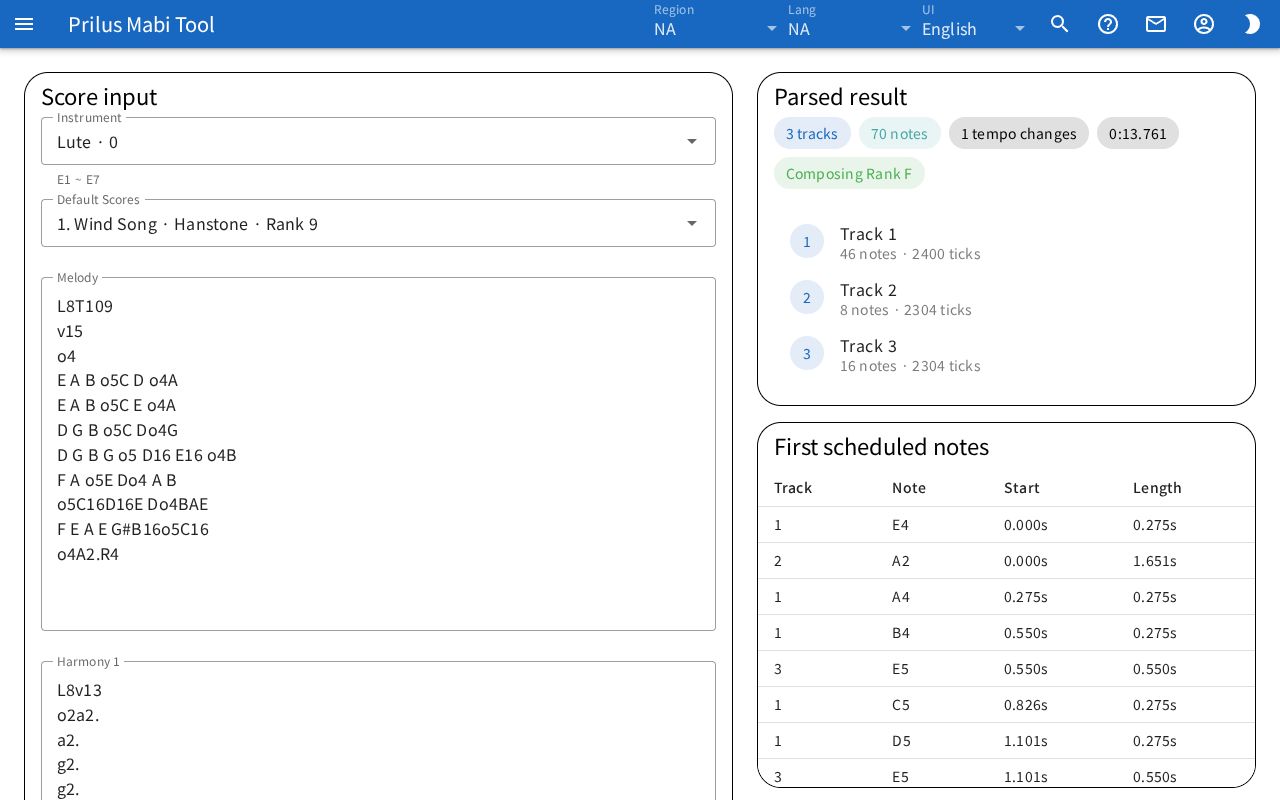
Screen layout
- Score input: Where you pick an instrument and enter a score. The play buttons, volume, and playback position are also here.
- Parsed result: Shows the track count, note count, length, and Composing rank needed for the score you entered.
- First scheduled notes: Shows the notes from the start in a table.
On a wide screen, Score input is on the left and the rest is on the right.
Basic use
- In Instrument, pick the instrument to play.
- Paste the score into the Melody, Harmony 1, and Harmony 2 boxes. To hear a score from the game, pick one in Default Scores.
- Press Play.
- Check the length and the Composing rank needed in Parsed result.
When you first open the page, the first score in the Default Scores list is filled in.
Entering a score
- Instrument: Click the box to open the list of instruments as "name · ID". The range of the instrument you picked is shown below the box. Instruments that play only one note at a time show single pitch.
- Default Scores: Pick and fill in a score from the game, listed as "ID. title · composer · rank". When you pick one, the three boxes change to that score.
- Melody, Harmony 1, Harmony 2: Enter one track in each box. Each box takes up to 2000 characters, and the character count is shown below the box.
- Press Ctrl+Enter (Cmd+Enter on Mac) in a box to play right away.
- If you edit a score box, the Default Scores selection is cleared.
- If you change the score or instrument, playback stops.
- If the score cannot be read, an error is shown below Score input. If there is something to watch out for, a warning is shown with it.
Playing
- Play: Plays from the beginning. While getting ready to play, the button shows Loading instrument.
- Pause: Pauses playback. While paused, the button changes to Resume. Press it to continue playing.
- Stop: Stops playback and goes back to the beginning.
- Repeat: When on, plays again from the beginning after reaching the end.
- Set the volume from 0-100% with the slider next to the speaker icon.
- The bar at the bottom is the playback position. Move the bar while playing or paused to jump to that position. The current position and total length are shown below the bar.
- If the score you entered has no notes, or this browser does not support playback, you cannot press Play.
Parsed result
The score you entered is analyzed right away and shown.
- The tags at the top show ○ tracks, ○ notes, ○ tempo changes, and the total length.
- Next to them, the Composing rank needed to write this score is shown as "Composing ○". If it is too long to write even at Composing rank 1, a red Above Composing Rank 1 is shown.
- Below that, each track shows "Track ○" and "○ notes · ○ ticks".
First scheduled notes
- The first 40 notes by start time are shown in a table.
- It shows Track, Note (note name), Start (seconds), and Length (seconds).
- If there are no notes, No notes is shown.
Sharing
- Press Share to make a link with the current instrument and the scores in the three boxes.
- The link is copied to the clipboard and "Share link copied to clipboard." appears.
- If it cannot be copied to the clipboard, a window with the link appears. Copy it yourself.
- Opening the link opens the page with the same instrument and score filled in.
- If you open a link while you have a score entered, the message "Opened the linked score." appears with an Undo button. Press it to go back to the score you had entered.
- If the link has an instrument that is not in the region you are viewing, "Instrument ○ is not available in this region." appears, and it changes to the first instrument in the list.