
Find Cooking Recipes
This page helps you look up Mabinogi cooking recipes. For each dish, you can see the cooking method, cooking EXP, and the ingredients and ratios at a glance.
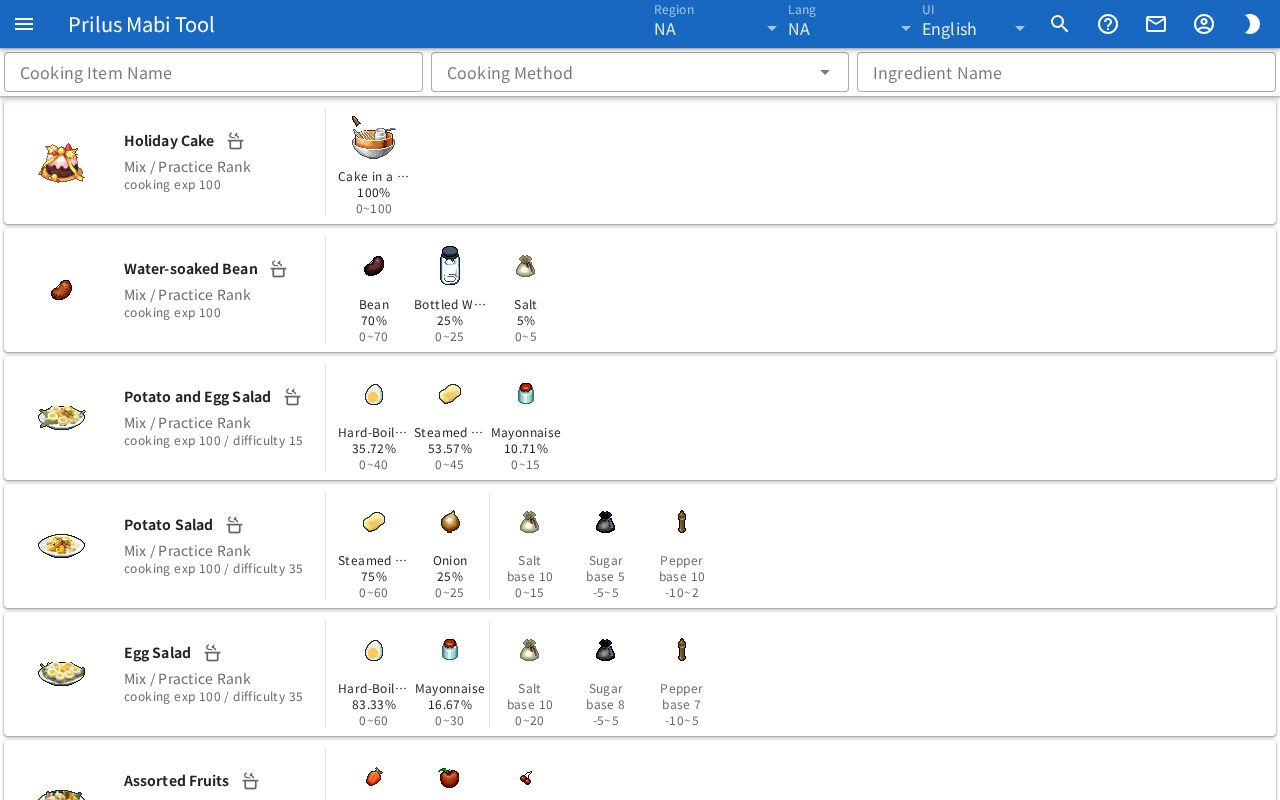
Screen layout
- There are three search boxes at the top: Cooking Item Name, Cooking Method, and Ingredient Name.
- Below them is the recipe list. Each row shows one dish.
- The left side of each row has the dish image and dish details.
- The right side of each row, past the vertical line, has the ingredients to add.
Basic use
- Type the name of the dish you are looking for in the Cooking Item Name box.
- Only dishes with a matching name stay in the list.
- On the left of the dish's row, check the cooking method and cooking EXP.
- On the right of the same row, check the ingredients to add and their ratios.
- To match ingredient amounts in the game, press the pot icon next to the dish name to open Cooking Preview.
Finding recipes
- Cooking Item Name: Type a dish name to show only recipes with a matching name.
- Cooking Method: Click the box to open the list of cooking methods. You can pick more than one. Only recipes for the cooking methods you picked are shown. If you pick nothing, recipes for all cooking methods are shown.
- Ingredient Name: Type an ingredient name to show only recipes that use that ingredient.
- If you use all three boxes, only recipes that match every filter stay.
- Clear a box to remove that filter.
Reading dish details
The left of each row shows the dish details.
- The dish name is at the top. If x and a number follow the name, that many are made at once.
- Press the pot icon next to the dish name to open Cooking Preview. Hover over the icon to see the tooltip Cooking Preview.
- Below that are the cooking method and the rank needed for that cooking method.
- Below that is cooking exp. Dishes with a difficulty also show difficulty.
- If the dish needs something else, its name is shown in a small tag.
- Dishes with an unlock condition show that condition in a small tag.
- A dish with the on failure tag turns into a different item if cooking fails. Hover over or click this tag to see what it turns into. On a touch screen, tap the tag.
- Hover over the dish image to see its description. Click it to open the item menu. Menu entries differ by item. See Item menu for details.
- You can also open cooking preview from the item menu of the dish image.
Reading ingredients and ratios
The right of each row shows the ingredients to add.
- Each ingredient shows its image, name, and ratio (%). The quality range is shown below it.
- If there is another vertical line between ingredients, the ingredients to its right are optional ingredients. Optional ingredients are shown in faded text.
- Optional ingredients show a base value instead of a ratio. The quality range is shown below it.
- Hover over or click an ingredient name to see more details. It shows the full name, ratio, base value, and quality range. Optional ingredients do not show a ratio.
- If a long name is cut off, you can see the full name the same way. On a touch screen, tap the name.
- Ingredient images also show a description and the item menu, the same as dish images.
Cooking preview
Press the pot icon next to the dish name to open it. It is a guide for matching how much of each ingredient to add in the game.
- At the top are the dish image, name, cooking method, and rank. If the dish needs something else, it shows "○○ required".
- Below that is a picture modeled on the in-game cooking window. The gauge is filled in a different color for each ingredient, by its ratio.
- As the on-screen guide says, match the amounts using the buttons and vertical marks under the ingredient images.
- The list below the picture tells you how far to fill the gauge for each ingredient, using the buttons and letter positions in the game window. The color mark in front matches the gauge color.
You can change the following settings above the picture.
- UI scale: Choose the picture size from 100%, 125%, 150%, and 200%.
- show marks: When on, a vertical line is drawn on the gauge where each ingredient ends. Hover over a line to see something like "ingredient 1: up to ○○%".
- optional ingredient: Shown only for dishes with optional ingredients. Pick the optional ingredient to add, and it is included in the guide. Choose none to view it without an optional ingredient.
Below that is the ingredient list.
- Each ingredient shows its number, name, ratio, and the % to fill the gauge up to. Optional ingredients have (optional) added.
- Add the ingredients in the order of the list.
- The positions shown are target positions, without the in-game gauge wobble.
- At the bottom are cooking exp, difficulty, unlock, and, for dishes that turn into another item on failure, that information.