
Damage Skin Preview
Preview how numbers look with a damage skin. Pick a skin and a damage value, then press Hit to make the number pop up above the character in that skin.
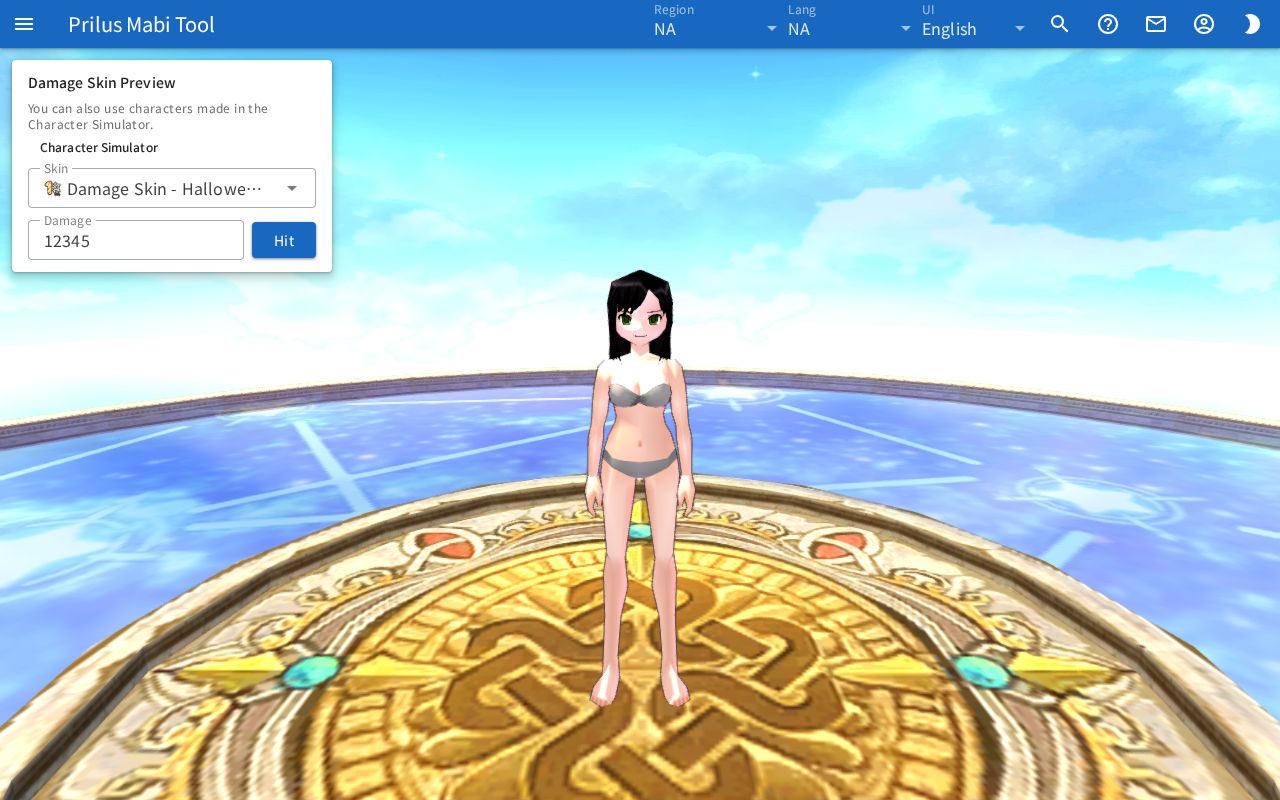
Screen layout
- A 3D character stands across the whole page.
- The Damage Skin Preview panel is at the top left. Pick the character, skin, and damage here.
Basic use
- Click the Skin box and pick a damage skin.
- Enter the number you want to see in the Damage box.
- Press Hit.
- The damage number appears above the character in the skin you picked, then fades away.
Picking a skin
- Click the Skin box to open the list of damage skins. The list shows the item image, name, and item ID.
- Type a name in the box to search the list.
- The skin you picked is shown in the box with its image and name.
- When you first open the page, the first skin in the list is picked.
- In a region with no damage skins, the list shows "No damage skins in this region."
Showing damage
- Enter a number in the Damage box. You can enter 0 to 2147483647. Larger values are shown as 2147483647, and anything after the decimal point is dropped.
- Press Hit, or press Enter in the Damage box, to show the number.
- If you press it again before the number fades, several numbers appear together.
- You cannot press Hit until the character has finished loading. You also cannot press it when no skin is picked.
Character
- The character on screen is one you made in the Character Simulator and saved in this browser. If you have not made one, a default character appears.
- If you have two or more characters in the Character Simulator, a Character box appears. Pick the character to show numbers on here. At first, the first character in the list appears.
- If you have only one character or none, the notice "You can also use characters made in the Character Simulator." and a Character Simulator button appear in that spot. Press the button to go to the Character Simulator. They do not appear when the page is opened as a window from the item menu.
- If the character fails to load, the notice "Could not load the character." appears at the bottom of the Damage Skin Preview panel.
Good to know
- The skin and damage value you picked are kept in the page address. Copy the address to open the same skin and value again later.
- If the skin image fails to load, a notice appears at the bottom of the Damage Skin Preview panel.