
Item Search and Info
A page for looking up every item in Mabinogi. For each item you can see its description, tradability, repair cost, and dyeable parts, and follow where it is made and where it is used.
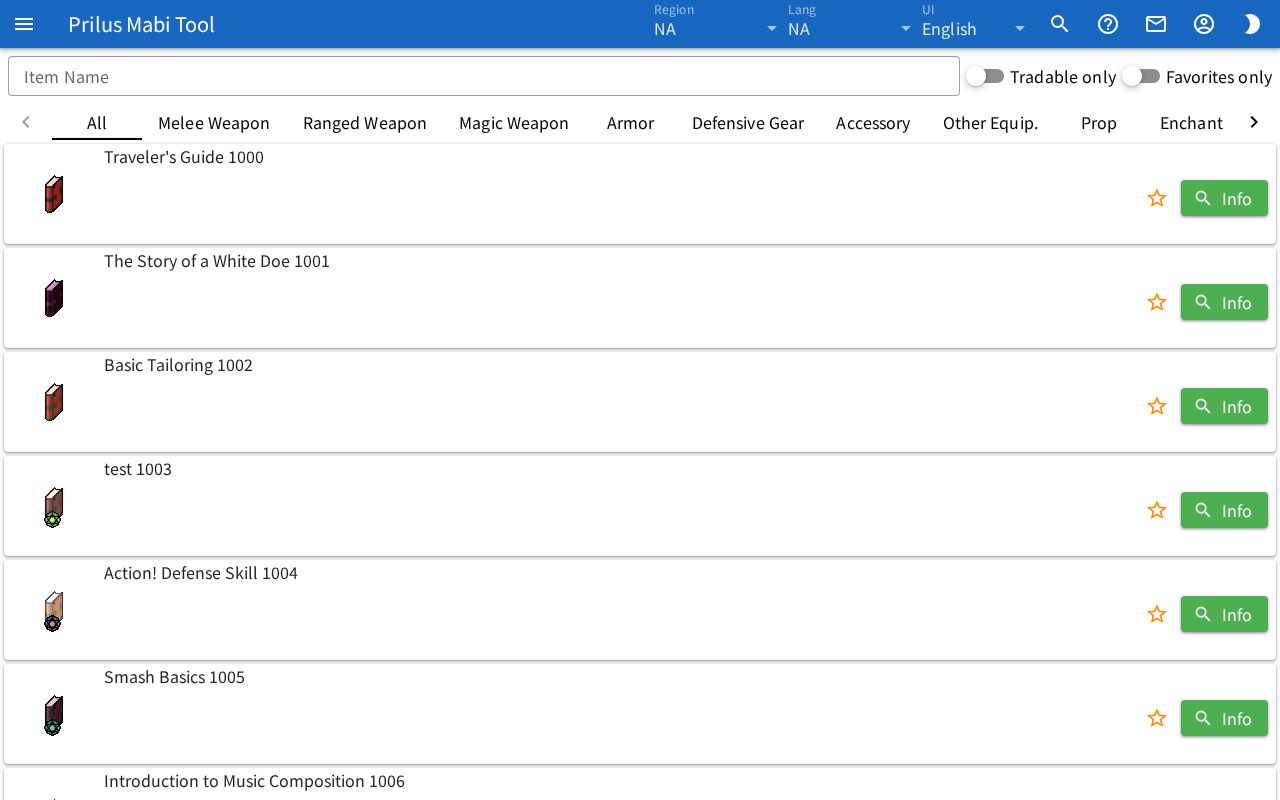
Screen layout
- At the top is the Item Name search box. Next to it are the Tradable only and Favorites only switches.
- Below that are the category tabs. They appear only when category info exists. If there are many tabs, use the arrows on both sides to scroll.
- Below that is the item list. Each row shows one item.
- Each row has the item image, name and ID, a star button, and an Info button.
Basic use
- Enter the name or ID of the item you want in the Item Name box.
- Matching items stay in the list, best matches first.
- Press the Info button on the item's row to open the item info window.
- Click the item image to open the item menu. From the menu you can open production, uses, previews, and more right away.
Finding items
- Item Name: enter a name or ID to see only matching items. Spaces are ignored. Korean names can also be found by their Hangul initial consonants.
- Tradable only: turn it on to see only items that can be traded.
- Favorites only: turn it on to see only your favorite items.
- Press a category tab to see only items in that category. Press All to clear the category filter.
- If a category has two or more subcategories, subcategory buttons appear below the tabs. Choose one to see only items in that subcategory.
- When you combine the search box, switches, and categories, only items that match every condition remain.
Favorites
- Press the star button on the right of a row to add the item to or remove it from favorites. Favorite items show a filled star.
- You can also switch it with Add to Favorites and Remove from Favorites in the item menu.
- Favorites are saved in this browser. They are saved separately for each region.
Item info window
It opens when you press the Info button in the list or Info in the item menu.
- At the top are the item image, name, ID, and description.
- Below that is a row of buttons. They are the same entries as the item menu, minus Info.
- Items with auction house price info show the Lowest Price. If there is no lowest price, it shows no data.
- Trade, Drop, Bank storage, Bank sharing, and Pet storage each show whether they are Available or Unavailable.
- Items that keep their ownership are marked Ownership kept.
- Items with Motion Sequence slots show the slot count in Motion sequence.
Depending on the item, the following info also appears.
- Repair cost per point: for each % value, the Gold needed to repair 1 point. Below it is the note "Base item. Enchants and upgrades raise it."
- Color Table: each colored part gets its own line, like Part 1 and Part 2. Dyeable parts have a check mark, and parts that can't be dyed have an X. Press the magnifier button on a dyeable part to see that part's color table.
- Unique Options: options that only this item gets.
- Set Item Info: for set items, the set effects and their values. Effects that depend on quality have "if quality ≥ ○" added.
When you open the info window with the Info button in the list, the address in the address bar changes to that item's address. Open the page at this address to open that item's info window right away.
Item menu
Wherever an item image appears on this site, it works the same way.
- Hover over an item image to see the item name and ID. Items with auction house price info also show the auction house lowest price.
- Click an item image to open the item menu. The top of the menu shows the same info as hovering. On a touch screen, just tap the image.
- Press the same image again to close the open menu.
- Menu entries differ by item. An entry appears only when it applies to that item.
- Entries are grouped by type, with a line between groups.
- On some pages, entries used only on that page are added to the top of the menu.
- Items not in this region's data show an empty image icon instead of the image. Hover over it to see Item data not found in this region. It can't be pressed.
Pressing a menu entry usually opens a window with that content.
Info and previews
| Entry | Shown when | What it does |
|---|---|---|
| Info | Always | Opens the item info window. |
| Bag details | It is a bag | Shows the bag's slots and the items it can hold. See Bag Comparison and Layout Planner. |
| Model Preview | The item has a model | Shows the item model in 3D. |
| Weapon Effects | It is a weapon with a Special Upgrade, spirit, or Erg effect | Previews the effect with a character holding the weapon. |
| Try On | A character can wear it | Dresses a character in it and shows it in 3D. |
| Try Sitting | It can be sat on | Shows a character sitting on it in 3D. |
| Stardust Appearance | It unlocks a Stardust appearance | Puts that Stardust appearance on a character and shows it in 3D. See Stardust. |
| Motion Sequence | The item has Motion Sequence slots | Previews the motion sequence. |
| Production | It can be made through production | Shows how to make this item. |
| Material Tree | It can be made through production | Shows the materials needed to make this item, down to the materials of materials, as a tree. |
| Cooking Recipe | It can be made by cooking | Shows the recipe for this dish. See Find Cooking Recipes. |
Try On and Try Sitting use the first character in the Character Simulator. If that character's race can't wear the item, it switches to a race that can. Weapons are shown drawn.
Press the Open in Character Simulator button at the top of the Try On, Try Sitting, or Stardust Appearance window to close the window and add what you were viewing to the Character Simulator as a new character. If a message says there is no character to dress, use the Character Simulator button in the message to open the Character Simulator.
Uses
| Entry | Shown when | What it does |
|---|---|---|
| Used in Production | It is a production material | Shows the production recipes that use this item as a material. |
| Used in Cooking | It is a cooking ingredient | Shows the dishes that use this item as an ingredient. |
| Barter | It is a barter material | Shows the barters that use this item as a material. |
| Sold at Event Shop | An event shop sells it | Shows the event shops that sell this item. |
| Buy With This | It is used as currency at an event shop | Shows what you can buy with this item. |
| Dungeon Drops | It drops as a dungeon reward | Shows the dungeons and difficulties that drop this item. |
Item-specific info
| Entry | Shown when | What it does |
|---|---|---|
| Reforge | It can be reforged | Shows this item's reforging info. See Reforging Options and Reforge Simulator. |
| Upgrade | It can be upgraded | Shows this item's upgrade info. See Item Upgrade Options and Cost Calculator. |
| Item Simulator | The item has stat info | Opens this item on the Item Simulator page. |
| Set Effects | The item has set effects | Shows the set effects on this item. See Set Effects. |
| Erg Enhancement | It is a weapon whose Erg can be enhanced | Opens the Erg Enhancement page with this weapon's type selected. |
| Spirit Effect | It has a spirit effect | Previews the spirit effect. |
| Damage Skin | It has a damage skin | Previews the damage skin. |
| Skill Effect | It changes a skill effect | Shows this item's skill effect. |
| Weapon Appearance | It is a weapon appearance item | Shows this item's weapon appearance. |
| Totem | It is a totem | Shows this totem's info. |
| Miniature | It is a miniature | Shows this miniature's info. |
| Food Effect | It has food effects | Shows this food's effects. |
| Color Table | It has a dyeable part | Shows the color table of the first dyeable part. |
Other entries
| Entry | Shown when | What it does |
|---|---|---|
| Auction House | It has auction house price info | Searches the auction house for this item. |
| Add to Favorites, Remove from Favorites | Always | Adds it to or removes it from favorites. |
| Copy Link | Always | Copies an address that opens this item's info window right away. |
| JSON | Always | Shows this item's detailed data in JSON format. |
If Copy Link can't copy, a small window with the address appears. Copy it from there yourself.