
Find Enchant Effects
Look up enchants by name or effect. For each enchant, see its usage, rank, and effects, and list the items it can be applied to.
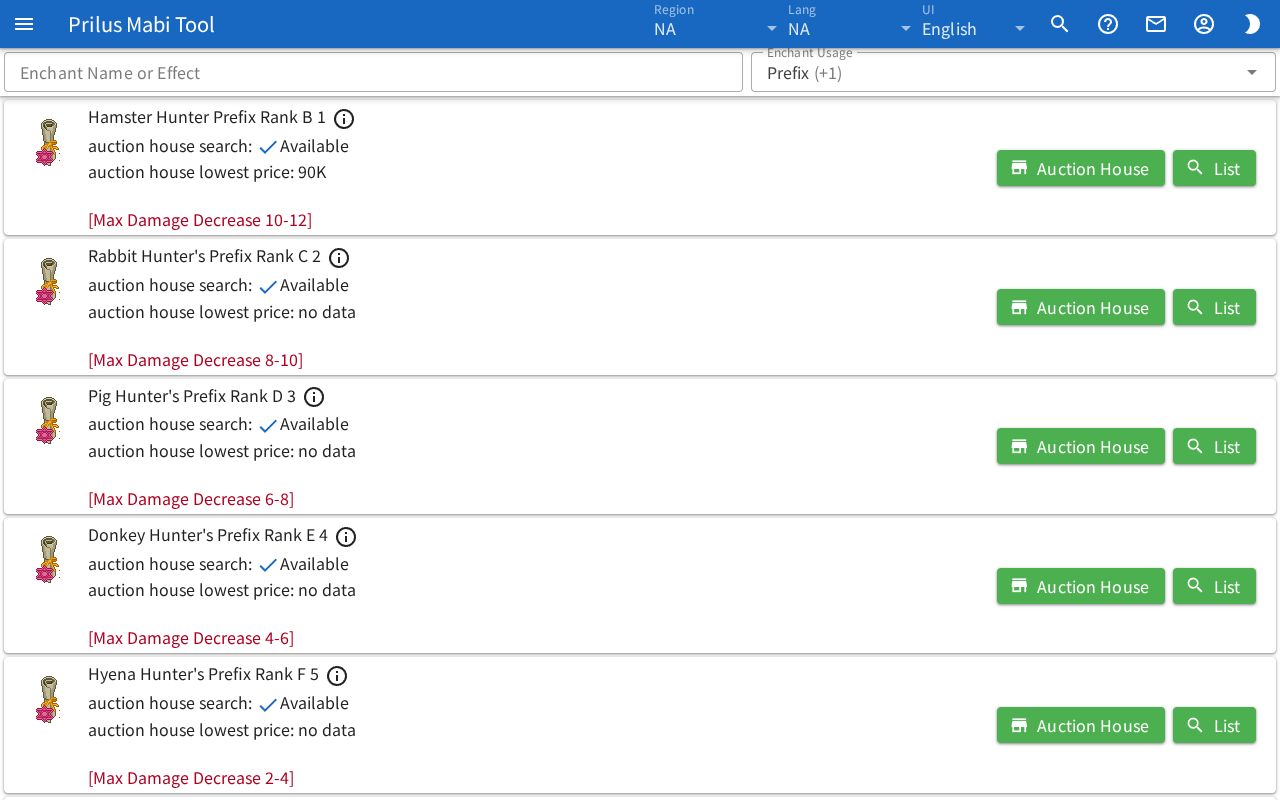
Screen layout
- At the top are the Enchant Name or Effect search box and the Enchant Usage selector.
- Below that is the enchant list. Each row shows one enchant.
- Each row has the Enchant Scroll image on the left, the enchant info and effects in the middle, and the List button on the right. Prefix and suffix enchants that can be searched on the auction house also have an Auction House button.
Basic use
- Enter an enchant name or effect text in the Enchant Name or Effect box.
- Choose the usages to see in Enchant Usage.
- Check the effects in the row of the enchant you found.
- Press the List button to open a window with the items that enchant can be applied to.
Finding enchants
- Enchant Name or Effect: search by enchant name, effect text, or ID.
- Enchant Usage: you can choose several of Prefix, Suffix, Holy Flame, Artisan, Holy Water, Relic Unique, Relic Prefix, and Relic Suffix together. Only enchants of the chosen usages appear.
- At first, Prefix and Suffix are chosen. Clear them all to see every usage.
- If you choose several, the box shows the first usage and "(+remaining count)".
- Your chosen usages are saved in this browser and stay the same the next time you open the page.
- When you use both boxes together, only enchants that match both conditions remain.
What each row shows
- The first line shows the enchant name, usage, rank, and ID. Enchants with two names appear as "name/name". At the end is an info icon button.
- auction house search: shows Available if that Enchant Scroll can be searched on the auction house, and Unavailable if not.
- If it is Available, the auction house lowest price appears below it. If there is no price record, it shows no data.
- Below that, the effects appear one per line. Lines that start with [ appear in a different text color.
- Press the info icon button to open the "enchant (name) (ID)" window. Hover over the button to see Info. The enchant's detailed info appears as a collapsed list by entry. Press an entry to expand it.
Viewing auction house listings
Among Prefix and Suffix enchants, those whose auction house search is Available have an Auction House button on the right. Press it to open the auction house listings found for this enchant in the "auction (name)" window.
Viewing applicable items
Press the List button to open the item list window. It shows the items that enchant can be applied to.
- At the top are the Item Name search box and the Tradable only and Favorites only switches.
- Below that, items appear one per row. Each row has the item image, name and ID, a star button, and an Info button.
- Press Info to open that item's info window. The star button is for favorites. See Item Search and Info for details.
Hover over an item image to see its name. Click it to open the item menu. Menu entries differ by item. See Item menu for details.