
Explore Field Maps in 3D
This page lets you explore Mabinogi field maps in 3D. Pick a region, and the ground and props appear. You can change the sky and time of day, or place a character and walk around.
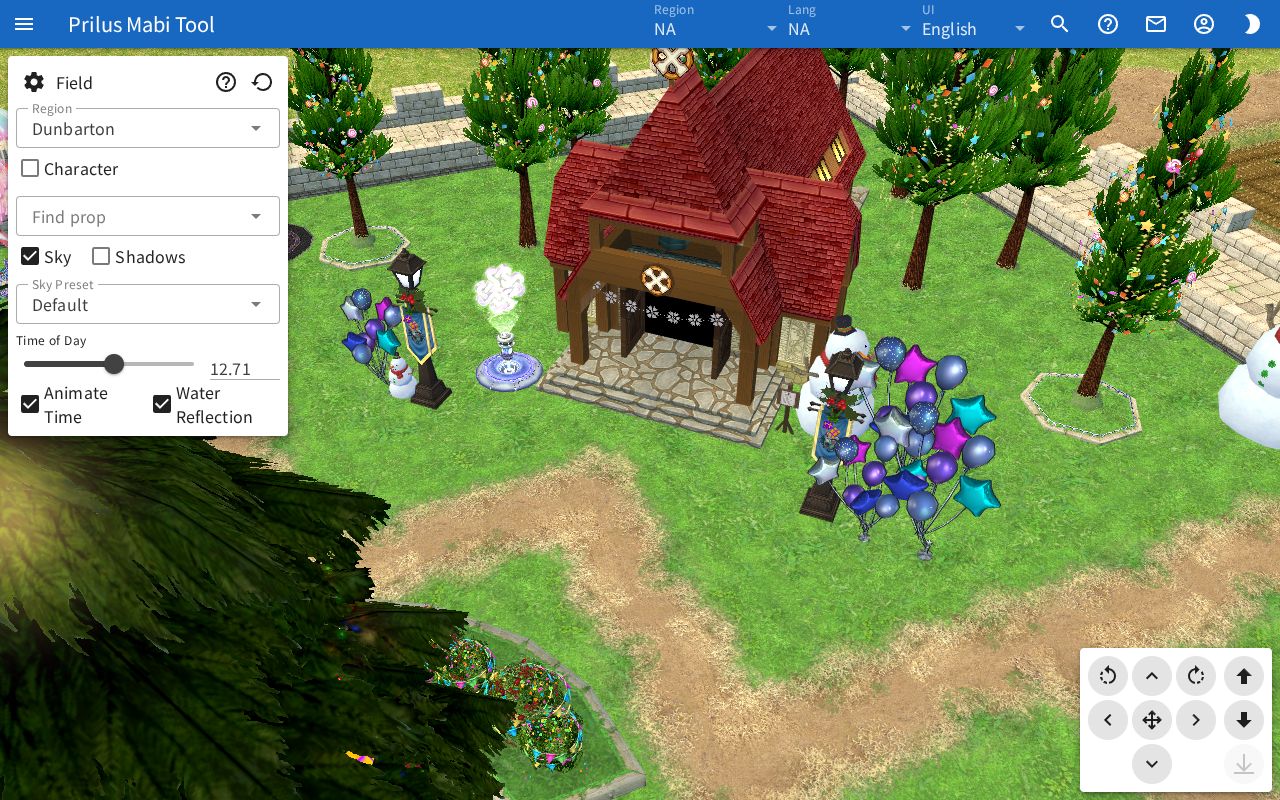
Screen layout
- Center: The whole page is a 3D view.
- Settings panel at the top left
- The top line has the gear button, the Field title, the question mark button, and the reset view button.
- Below that are settings such as Region, Character, Find prop, Sky, and Shadows.
- Movement buttons at the bottom right: Buttons for moving the view with the mouse or a finger.
- Bottom center: While the ground is loading, "Loading ground ○ / ○" appears.
Basic use
- Click the Region box and pick the region to explore. You can also type to search.
- Wait until "Loading ground" at the bottom of the view disappears.
- Drag with the mouse to move, drag with the right button to rotate, and scroll the wheel to zoom.
- Change Time of Day under Sky to try different times.
- To go back to the starting spot, press the reset view button on the top line.
Top line of the settings panel
- Gear button (Show/hide settings): Collapses or expands the lower part of the settings panel. The top line stays even when collapsed.
- Question mark button: Hover over or click it to see the controls. When Character is on, it changes to the character controls.
- Round arrow button (Reset view): Returns to the starting spot and view of that region.
Picking a region
- Click the Region box to open the list of regions. Regions are split into groups, and regions with no group are under Other at the end.
- Small text is shown below each region name. Type to search by the name or this small text. While searching, only matching regions are shown, without group titles.
- When you pick a region, Sky Preset also changes to one that fits that region.
Moving the view
Mouse and touch
These are the same as the question mark button's guide.
- Drag to move.
- Drag with the right button or with two fingers to rotate.
- Scroll the wheel, or spread or pinch two fingers, to zoom in or out.
- Double-click to look at that spot.
Keyboard
| Key | Action |
|---|---|
| W A S D, arrow keys | Move |
| Q, E | Rotate |
| Page Up, Space | Up |
| Page Down | Down |
| R | Switch the movement keys to angle control, or back |
- In angle control, W/S (↑/↓) change the up-down angle and A/D (←/→) change the left-right direction.
- The keys do not move the view while you are typing in an input box.
Movement buttons
These are the buttons at the bottom right. The direction, rotation, and height buttons move the view while you hold them down. Hover over a button to see its name.
- Center cross: The up, down, left, and right arrows are Forward, Back, Left, and Right. The curved arrows at the upper left and right are Turn left and Turn right.
- Button in the middle of the cross: Switches the direction buttons between moving and angle control. Hover over it to see "Arrows move (R to switch)" or "Arrows change angle (R to switch)". In angle control, the button is highlighted. It does the same as the R key.
- Right column: Up, Down, and Back to ground.
- Back to ground can be pressed only when the view has left ground level, and it is highlighted then. This happens when you have moved with Up/Down, double-clicked a prop, or moved with Find prop. Press it to return to ground level.
Placing a character
Turn on Character to place a character at the spot you are looking at.
- The character placed is one from the Character Simulator list in this browser. If you have two or more characters, a Pick character box appears below. Pick one there.
- When Character is on, a Character Simulator button appears. Press it to go to the Character Simulator page.
- Choose Walk or Run to move with that motion.
- Click the ground to go to that spot. You can also move with WASD or the arrow keys.
- Drag to rotate the view.
- While a character is out, double-clicking does not move your position.
- Turn it off to remove the character.
Finding props
Find props placed in the region you have loaded and go to their spot.
- Click the Find prop box to open the list. Below each name is "#ID · ×count". The count is how many are placed in this region.
- Pick a prop to move the view to the closest one from where you are looking.
- Below the box, something like "1 / ○" shows which one it is. Use the Previous and Next arrows on either side to move to other spots of the same prop, in order of distance. If there is only one of that prop, the arrows cannot be pressed.
- Press × at the right of the box to clear the prop you picked.
When you change the region, the prop you picked is cleared.
Sky and shadows
- Sky: When on, the sky is drawn and the following settings appear.
- Sky Preset: Choose the look of the sky.
- Time of Day: Set the time from 0 to 24. You can also enter a number in the box on the right.
- Animate Time: When on, time passes on its own. The Time of Day slider moves along with it.
- Water Reflection: Draws reflections on water.
- Shadows: Draws shadows.
At first, Sky, Animate Time, and Water Reflection are on, and Shadows is off.
Good to know
- Your settings and the last region and spot you viewed are saved in this browser. The next time you open the page, it starts at that spot.
- The current region and spot are kept in the page address. Open that address to start at the same spot.