
Item Upgrade Options and Cost Calculator
A page for picking an upgradable item and viewing its upgrades. Each upgrade shows what it needs and the options it adds. Pick an upgrade for each step to total up the proficiency, Gold, and options.
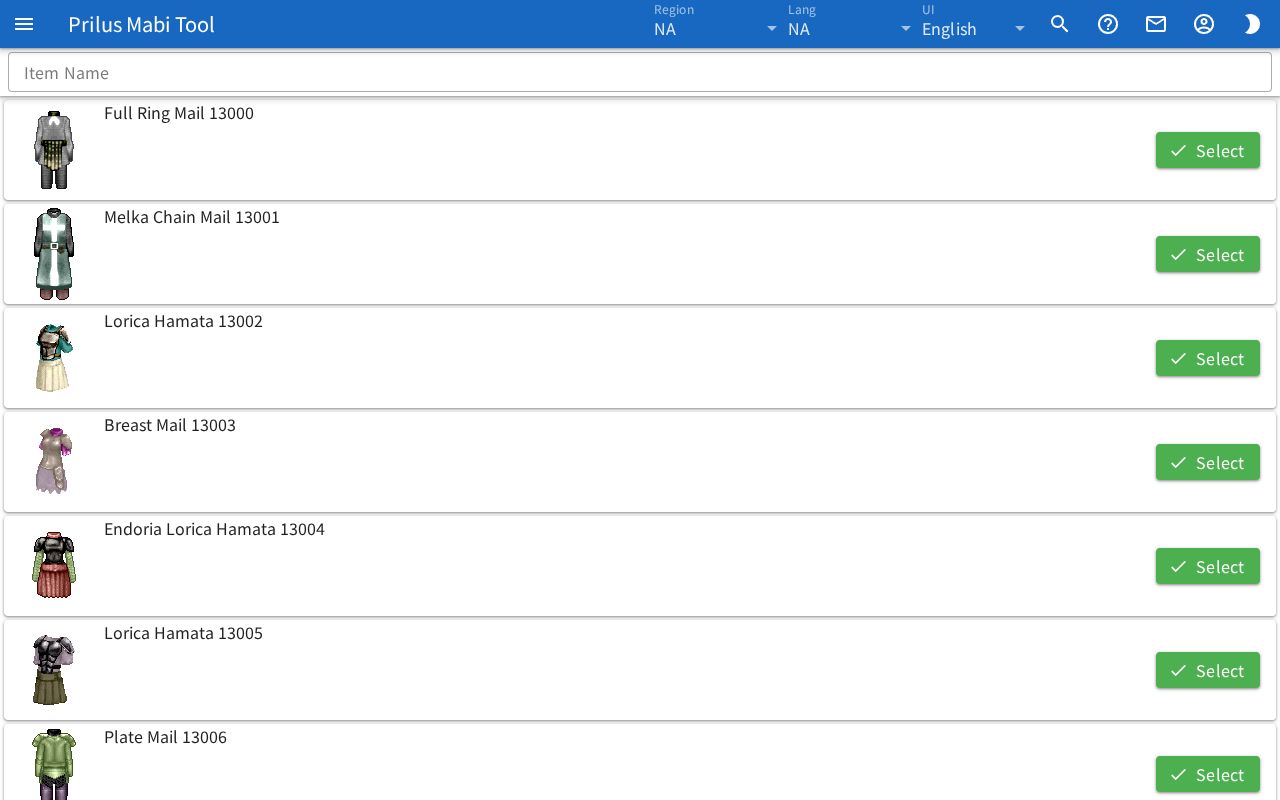
Screen layout
- At first you see the list of upgradable items. At the top is the Item Name search box.
- Once you pick an item, the item info and totals appear at the top and the upgrade table below.
Basic use
- Enter an item name or ID in the Item Name box to find it.
- Press the Select button on the item's row.
- Check what each upgrade needs and its options in the upgrade table below.
- In the step columns on the right of the table, press circles to pick the upgrade for each step.
- Check the totals of the upgrades you picked in Total Proficiency, Total Gold, and Total Options above.
- To see another item, press Reselect.
Picking an item
- Enter a name or ID in the Item Name box to see only matching items.
- Each row in the list has the item image, name and ID, and a Select button.
- Hover over an item image to see its description. Click it to open the item menu. Menu entries differ by item. See Item menu for details.
Item info and totals
Once you pick an item, the following appears at the top.
- The item image, name, and ID.
- The max upgrade count. Items with Gem Upgrades also show the max gem upgrade count.
- Total Proficiency, Total Gold: the proficiency and Gold needed for the upgrades you picked, added together.
- Total Options: the options of the upgrades you picked, added together. Options with a range are added at their highest value.
- On the right is the Reselect button. Press it to go back to the item list and clear all the upgrades you picked.
Upgrade table
Each row shows one upgrade.
- Name: the upgrade name. Upgrades with a description show it under the name.
- Required: shows the Proficiency needed. Upgrades that cost Gold also show Gold. Upgrades that need a gem show the gem name and size as "(○cm↑)".
- Options: the options the upgrade changes and their values. A value with a range appears as "min~max".
- Some upgrades also show the name of the effect they add.
- Some upgrades show option count, each random option with its probability, and fixed option.
Picking steps
The step columns are to the right of Options.
- Numbered columns like 1, 2, and 3 are upgrade steps. There are as many as the max upgrade count.
- Columns with G, like G1 and G2, are Gem Upgrade steps. There are as many as the max gem upgrade count.
- Only upgrades possible at that step have a circle. Upgrades that need a gem have circles only in G columns.
- Press a circle to pick that upgrade for that step. Only one upgrade can be picked per step. Pressing another upgrade at the same step switches to it.
- The totals above change right away as you pick.
Opening by address
- When you pick an item, the address in the address bar changes to that item's address. Open this address to open the page with that item already picked.
- If the item in the address can't be found, the message "itemId ○○ not found" appears.
- Press Upgrade in the item menu to open this screen in a window with that item already picked.