
Browse Registered Characters
Find characters registered in the Character Simulator by name and view them in 3D. Their equipment and colors are shown too.
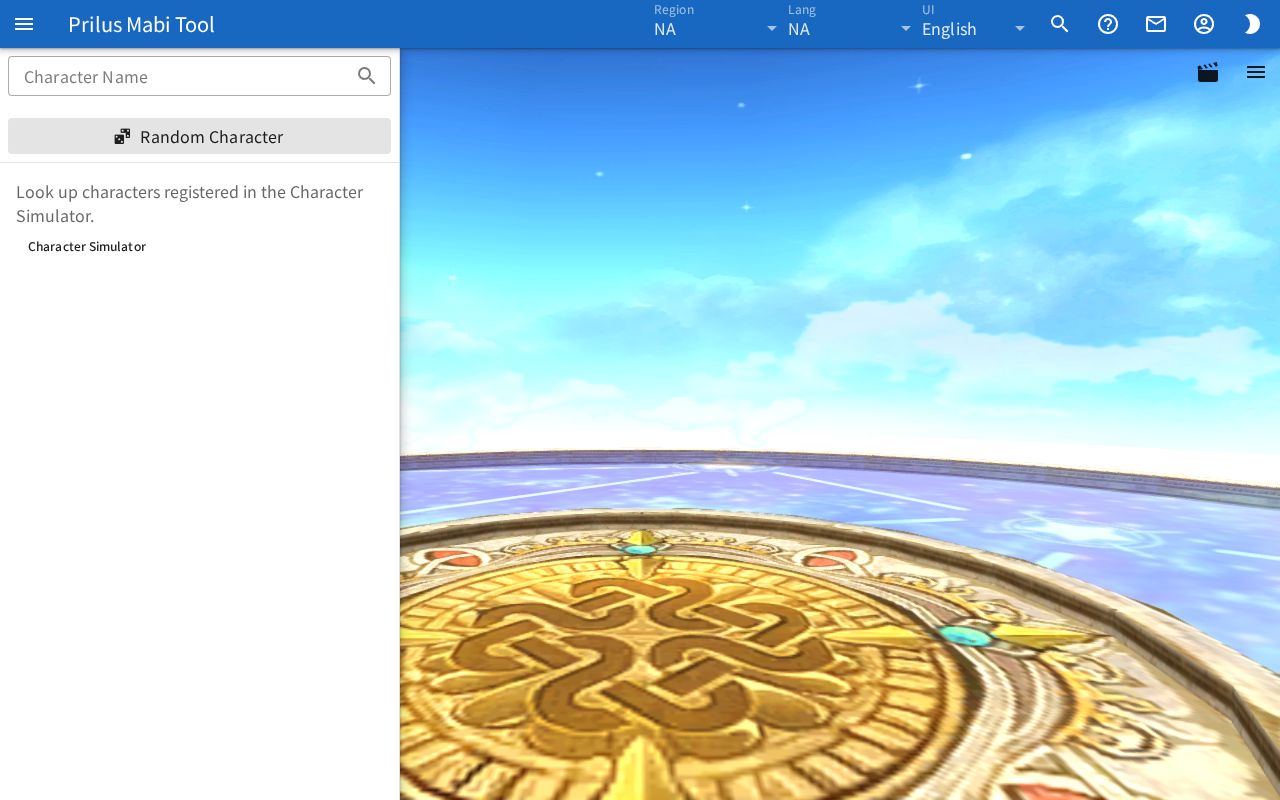
Screen layout
- Center: the 3D view fills the whole page.
- Button row at the top of the 3D view
- Magnifier button on the left: opens the left panel.
- Film button on the right: saves the view as a GIF.
- Tree button next to it: opens the Hierarchy panel. It appears after the character is shown.
- Eyedropper button next to it: opens the Color Modify panel. It appears when there are parts whose color can be changed.
- Three-line button at the far right: opens the Render Settings panel.
- Left panel
- At the top is the Character Name box.
- Before you find a character, the notice "Look up characters registered in the Character Simulator." appears. Press the Character Simulator button below the notice to go to the Character Simulator.
- Once you find a character, its name, an Edit button, and the equipment list appear.
- While loading, a progress bar moves at the very top of the 3D view.
Basic use
- When you open the page, the left panel is open. If it is closed, press the magnifier button at the top.
- Enter the name of the character to find in the Character Name box.
- Press the Enter key or the magnifier on the right of the box.
- The character appears in the 3D view. Its equipment appears in the left panel.
Finding characters
- It finds characters registered in the currently chosen region. If you change the region, it searches for the same name again in that region.
- If the name box is empty, "Enter a character name." appears.
- If no character is registered with that name, "No character is registered with this name." appears.
- When you search by name, the name is added to the end of the address in the address bar. Open this address to search for that name right away.
- You don't need to sign in to look up characters.
Character info
The found character's info appears in the left panel.
- At the top is the character name in large text. Below it are the region and the updated time.
- Below that is the equipment list. Only slots with an item appear.
- Slots appear in this order: Custom Motion, Armor, Hat, Gloves, Shoes, Robe, Puppet, Halo, Facewear, Tail, Right Hand, Left Hand, Right Hand (Set 2), Left Hand (Set 2).
- Each row shows the item image, item name, and slot name.
- If the item has colors, they appear as color swatches under the name. Hover over a swatch to see the color value.
- Items not in the current region's data show a no-image mark instead of the image, and an ID instead of the name. Hover over the mark to see Item data not found in this region.
Hover over an item image to see its description. Click it to open the item menu. Menu entries differ by item. See Item menu for details.
3D view
- The character appears with the look it had when registered. Registered Effects are shown too.
- If Motion Sequence was turned on when registering, that motion plays. Motion sequences play only while standing with both hands empty.
- If the map, sky, position, and camera from registration exist, it is shown in that scene. If not, it is shown with the map and sky of the Render Settings saved in this browser.
- If not all effects can be shown, "Some effects could not be shown." appears. If motions can't be loaded, "Some motions could not be loaded." appears.
You can change the view with a mouse or touch.
- Drag with the left mouse button to change the viewing angle.
- Drag up and down with the right mouse button to change the viewing height.
- Scroll the wheel to zoom in or out.
- On a touch screen, drag with one finger to change the angle. Spread or pinch two fingers to zoom in or out. Move two fingers up and down to change the viewing height.
Render Settings, GIF saving, Hierarchy, and Color Modify are the same as in the Character Simulator. See Dress Up Characters and Play Motions. Render settings changed on this page are not saved.
Taking it to the Character Simulator
Press Edit to take this character to the Character Simulator.
- If the character was registered with a map, position, and camera, the Open in Character Simulator window appears. It asks "Bring the map, position and camera too? Your Character Simulator map and sky will change."
- Look only: takes only the character.
- With scene: takes the map, sky, position, direction, and camera too. The Character Simulator's map and sky change.
- Characters without a map, position, and camera are taken right away without the window.
- Either way, the Effects and Motion Sequence settings come along.
- The character is added to the end of the Character Simulator's character list, and the simulator opens with that character chosen. Its name stays as registered.
Good to know
- This page shows only characters registered in the Character Simulator. To register one, see Register Character in Dress Up Characters and Play Motions.
- Editing a character you took doesn't change the registered character. If it is a character you registered, you can overwrite it in the Character Simulator's Register Character window.