
Dressing Room Collection Checklist
View the Dressing Room collection list by slot and check off the items you have collected one by one. The progress fills as you check items.
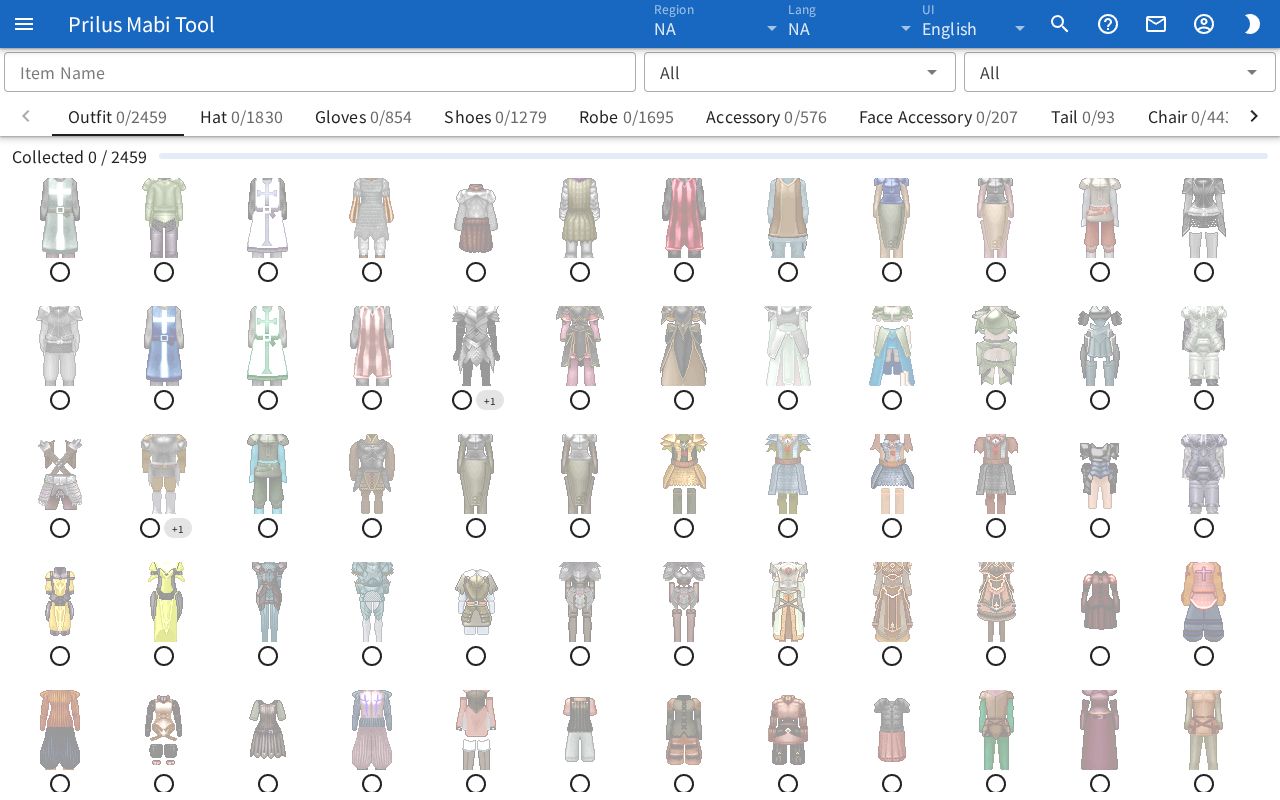
Screen layout
- At the top are the Item Name search box, the gender selector, and the view selector.
- Below them are the slot tabs. Next to each tab name, "checked count/total count" is shown in small text.
- Below that are "Collected ○ / ○" and a progress bar.
- Below that, items are laid out in cells. Each cell has an item image and a check button.
Basic use
- Click a slot in the slot tabs.
- Press the circle button in the cell of an item you have collected. It changes to a check mark and the image becomes clear.
- If you pressed it by mistake, press it once more. The check is removed.
- Check how much you have collected with "Collected ○ / ○", the progress bar, and the numbers next to the tabs.
Searching and filtering
- Item Name: Type a name to show only matching items. It also finds items by the names of other items that fill the same cell.
- Gender selector: Choose from All, Unisex, Female, and Male. It starts as All.
- View selector: Choose from All, Not collected, and Collected. Not collected shows only unchecked items, and Collected shows only checked items.
- The slot tabs show only the ones in the list among Outfit, Hat, Gloves, Shoes, Robe, Accessory, Face Accessory, Tail, Chair, Right Hand, Left Hand, Instrument, and Other.
- If no items match, the notice "Nothing matches." appears.
Progress
- "Collected ○ / ○" is the number of checked items among the items of the selected gender in the current tab. The view selector and search words do not change this number.
- The number next to a tab is the number of checked items in that whole slot. It does not depend on the gender selector.
Items that fill the same cell
- A cell with a "+number" tag next to the check button can also be filled by other items.
- Hover over the tag to see "Any of these also counts:" and the names of those items.
Good to know
- Your checks are saved in this browser. They are saved separately for each region.
- Unchecked items have faded images.
- In a region with no collection list, the notice "No collection list in this region." appears.
- Hover over an item image to see its name. Click it to open the item menu. Menu entries differ by item. See Item menu for details.