
Find Weapon Appearance Items
This page lists weapon appearance items. For each item, you can see its type, its scroll, and the scroll's lowest Auction House price, and preview the model in 3D.
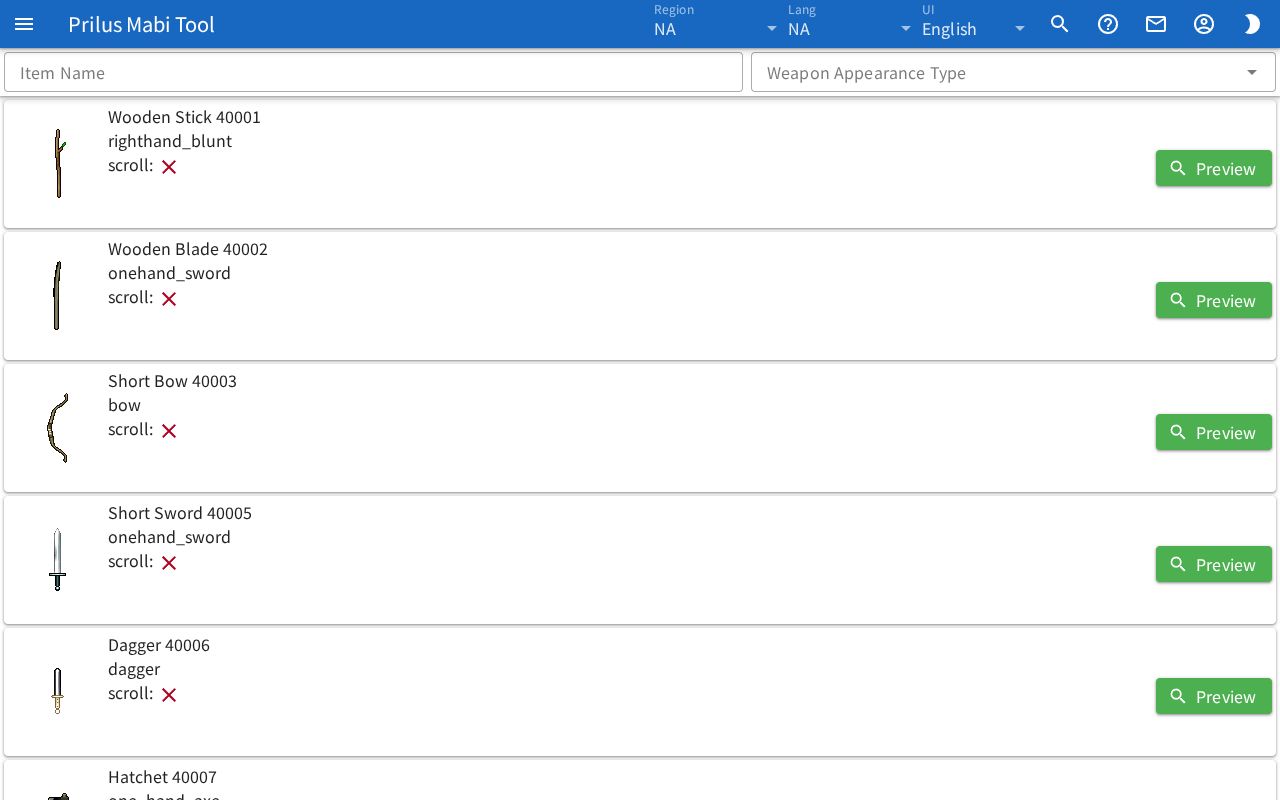
Screen layout
- There are two search boxes at the top: Item Name and Weapon Appearance Type.
- Below them is the weapon appearance list. Each row shows one item.
Basic use
- Type the name of the weapon appearance you are looking for in the Item Name box.
- Check the type and scroll of the item you found in the list.
- Press Preview on the right to see the model in 3D.
Finding weapon appearances
- Item Name: Type an item name or ID to show only matching items. You can also search by scroll name. Items found by scroll name are listed after items found by item name.
- Weapon Appearance Type: Click the box to open the list of types. You can pick more than one. Only the types you picked are shown. If you pick nothing, all types are shown.
- If you pick several types, the box shows the first type and (+remaining count).
- If you use both boxes, only items that match both filters stay.
Reading the list
- The item image is on the left. Hover over the item image to see its description. Click it to open the item menu. Menu entries differ by item. See Item menu for details.
- Next to it are the item name and ID, and below them is the weapon appearance type.
- scroll: If there is a scroll, a check mark and the scroll name and ID are shown. If there is no scroll, an × mark is shown.
- Press the magnifier button next to the scroll name to go to that scroll's item page.
- scroll auction lowest price: Shown only for scrolls that can be found on the Auction House. If there is no price record, it shows no data.
- Preview: Shown only for items that have a model.
3D preview window
Press Preview to open the "Item ○ Preview" window and see the item model in 3D. There are buttons at the top right of the window.
- Film button: Saves the view as a GIF.
- Tree button: Opens the Hierarchy panel. It lists the parts that make up the model. Press an eye button to hide or show that part.
- Eyedropper button: Appears only for models whose colors can be changed. Opens the Color Modify panel. Click a box to pick a color.
- Three-line button: Opens the Render Settings panel. Its options are the same as Render Settings in the Character Simulator help.
Depending on the model, State and Size tags appear at the top left. Click them to change the model's state and size. You can pick more than one State at once.