
Reforging Options and Reforge Simulator
A page for picking a reforgeable item and trying reforging ahead of time. For each Reforging Tool, you can also see the rank up probability, the attribute count increase probability, and the options and level ranges that item can get.
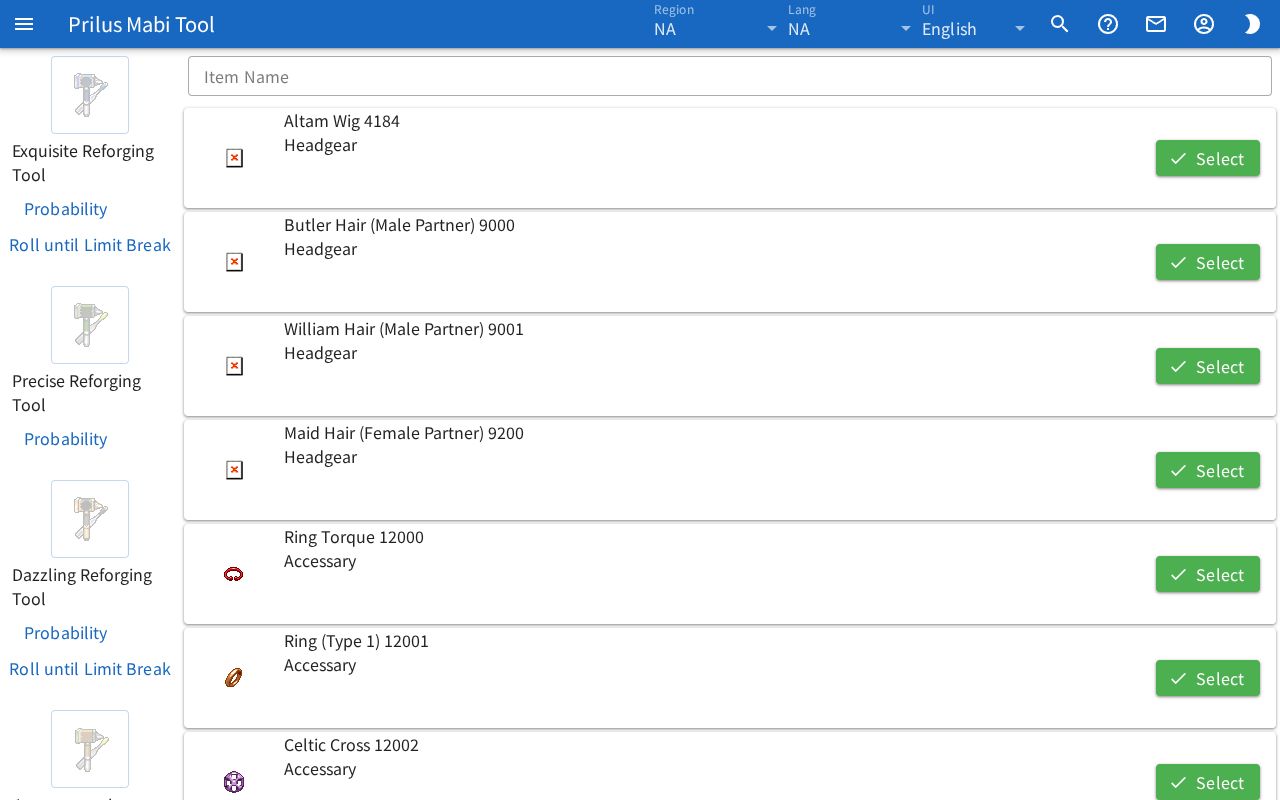
Screen layout
- On the left, the Reforging Tools are lined up vertically. Each tool has an image button, a name, and a Probability button.
- On the right, the list of reforgeable items appears at first. Once you pick an item, its reforging state appears there instead.
Basic use
- Enter an item name or ID in the Item Name box at the top right to find it.
- Press the Select button on the item's row.
- On the left, press the image button of the Reforging Tool to use. The result of one reforge with that tool appears on the right.
- Keep pressing to keep reforging.
- To see another item, press Reselect.
Picking an item
- Enter a name or ID in the Item Name box to see only matching items.
- Each row in the list shows the item image, name and ID, and equipment type.
- Hover over an item image to see its description. Click it to open the item menu. Menu entries differ by item. See Item menu for details.
- Press Select to reforge with that item. Before you pick an item, the Reforging Tool buttons can't be pressed.
Reforging
Once you pick an item, the item image, name, ID, equipment type, and the Reselect button appear at the top right. The current reforging state is below that.
- Rank: the current reforging rank. It is one of No Rank, Rank 3, Rank 2, and Rank 1. You can also choose it yourself to set the starting state.
- Attribute Count: the current number of options. You can also choose it yourself from 0-3.
- The options on the item appear below that. Each option shows its description and "(Level current level/max level: effect value)".
- Options that have hit Limit Break appear in yellow, and other options in blue.
On the Reforging Tools on the left, do the following.
- Press an image button to reforge once with that tool. Results are random. Rank, Attribute Count, and the options change to match the result.
- Below the tool name, how many times you used it appears like "x3".
- Tools with Limit Break have a Roll until Limit Break button. Press it to keep reforging until an option with Limit Break appears. It rolls up to 1000 times.
- Press Reselect to bring the use counts and reforging state back to the start.
Viewing probabilities
Press a Reforging Tool's Probability button to open the probability window.
- At the top are the Reforging Tool's image and name.
- Rank Up Probability: the probability of each rank changing to another rank, like "No Rank -> Rank 3 : ○%".
- Attribute Count Increase Probability: the probability of each option count changing to another count, like "0 -> 1 : ○%".
- Limit Break Probability: appears only for tools with Limit Break.
If you open it with an item picked, the options that item can get also appear below.
- Each option shows its description, Min Level, and Max Level. Options with Limit Break show Limit Break Level instead of Max Level.
- Below that is the range of effect values from the lowest level to the highest level.
- Level Probability: for each level range, the probability of getting any one level in it.
Press Close to close the window.
Opening by address
- When you pick an item, the address in the address bar changes to that item's address. Open this address to open the page with that item already picked.
- If the item in the address can't be found, the message "itemId ○○ not found" appears.
- Press Reforge in the item menu to open this screen in a window with that item already picked.