
Item Stats by Quality
Pick an item and set the quality to see the stats of that item made at that quality. You can also see the bonuses that depend on quality and the stats decided within a range.
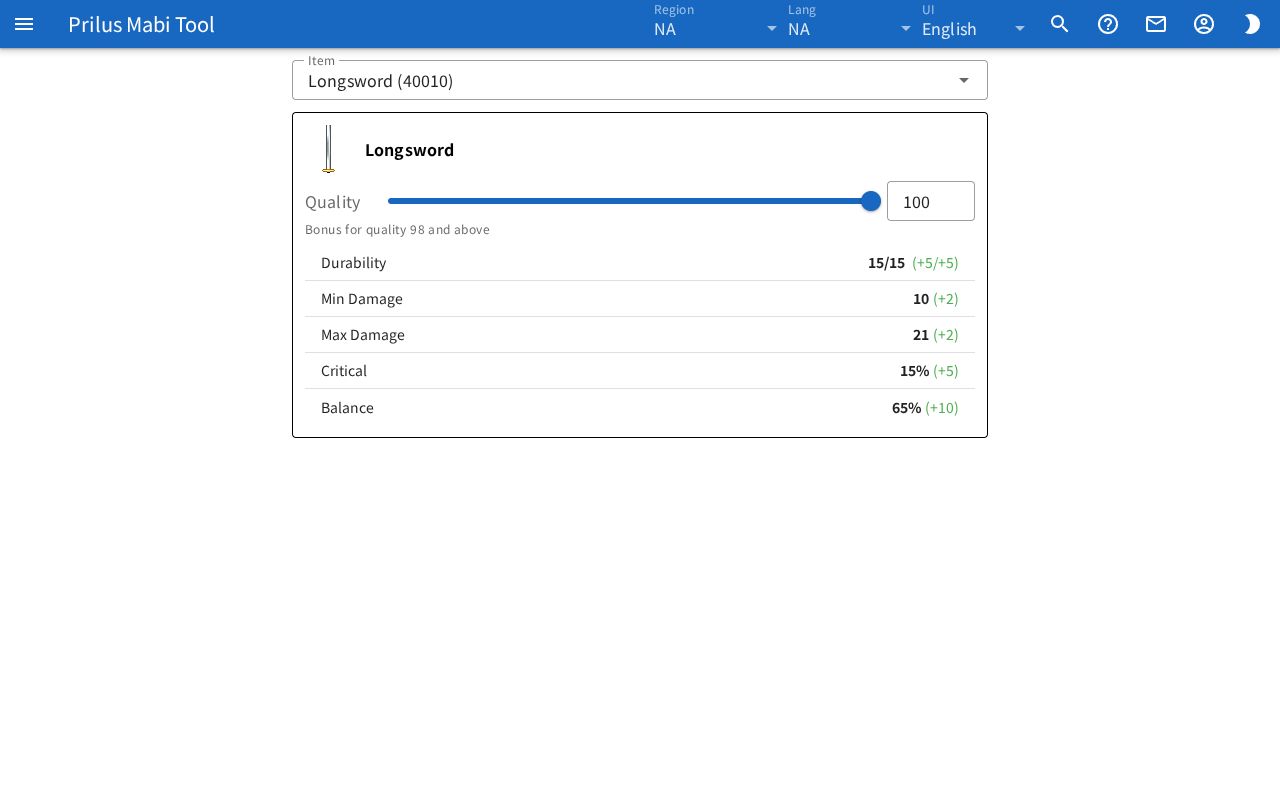
Screen layout
- The Item search box is at the top.
- When you pick an item, an item card appears below it. If you have not picked one yet, "Choose an item" appears.
- The card has the item image and name, the Quality slider, and the stats table, in that order.
Basic use
- Type an item name in the Item box.
- Pick an item from the list that opens.
- Set the quality by moving the Quality slider or entering a number in the box on the right.
- Check the stats at that quality in the stats table.
Picking an item
- The list shows only items whose stats can be viewed.
- Items are listed as "name (ID)", in name order.
- Type a name or ID to keep only matching items, with the best matches at the top. Part of a name also works. Korean names can also be found by their Hangul initial consonants.
- If more than 60 items match, only 60 are shown, and "Showing 60 of ○" appears at the end of the list.
- Press the X at the right of the box to clear the item you picked.
- When you pick an item, the page address changes to that item. Save or send the address to open the same item.
- Press Item Simulator in the item menu to open this page with that item picked.
- Hover over the item image to see its description. Click it to open the item menu. Menu entries differ by item. See Item menu for details.
Setting the quality
- Quality goes from -100 to 100. It starts at 100.
- Move the slider or enter a number in the box on the right. Both show the same value.
- If you leave the number box empty and click somewhere else, the box returns to the value it had before you cleared it.
- Below the slider, the bonus you get at the current quality is shown as "Bonus for quality ○○ and above". If you get no bonus, No quality bonus is shown.
- Items with no quality bonus do not show the Quality slider.
Reading stats
- The stats table shows the name and value of each stat.
- For stats with a quality bonus, the bonus is shown in parentheses next to the value. Increases are in green and decreases are in red.
- For stats shown as "current value/max value", such as Durability, the bonus is shown the same way.
- Stats decided within a range are shown as a range, such as "○ ~ ○".
- Items with no stat information show No data.
Below that, the following may also appear, depending on the item.
- Unique Options: Options that only this item gets.
- Set Item: Shows the set effects and values. Bonuses that depend on quality are shown with them as "(Bonus +○)". Bonuses you get at the current quality are in green. Bonuses you do not get yet are faded, with the needed quality added as "quality ○○ and above".
- One of: One of the stats in the table is added, within its range.