
Bag Comparison and Layout Planner
A page for comparing Mabinogi bags. See how many slots each bag holds and how many inventory slots it takes, and what effects Doll Bags give and what they pick up. In Planner, try placing bags in your inventory and build doll summon combinations.
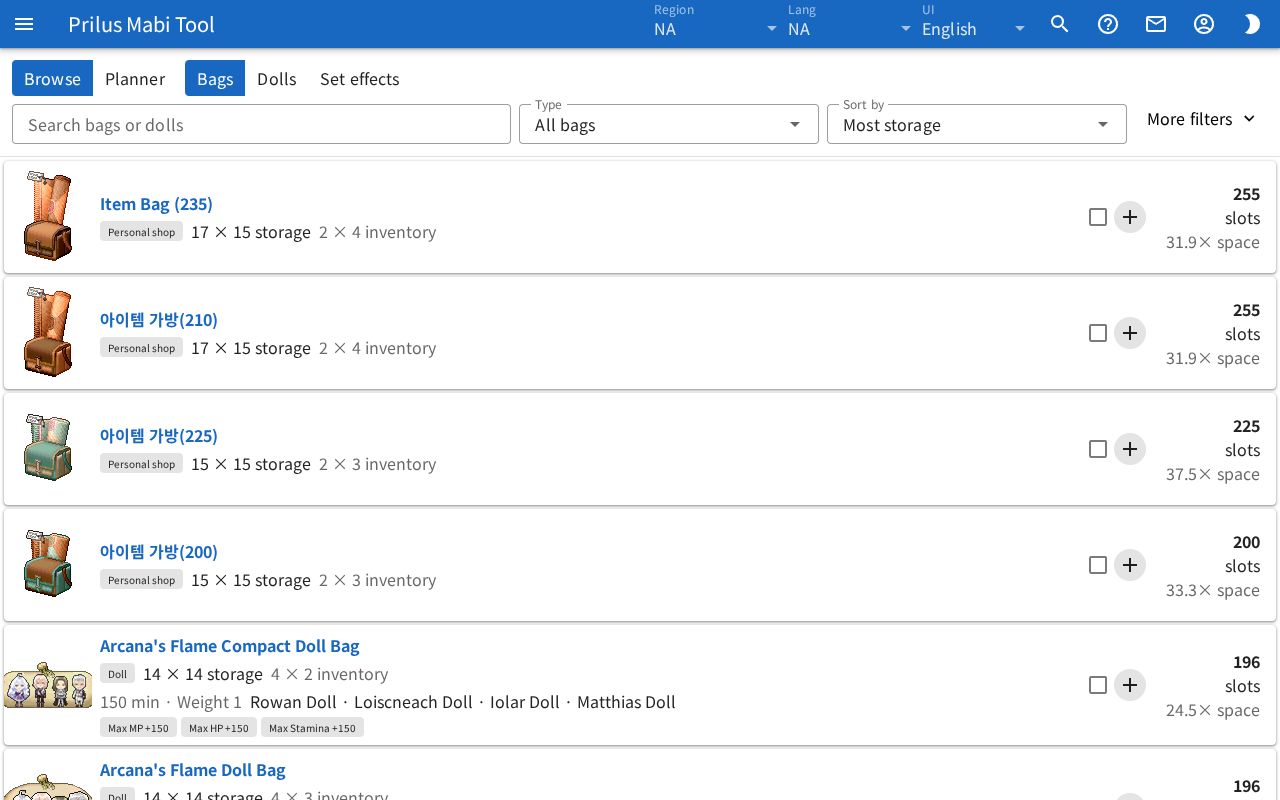
Screen layout
- At the top left are the Browse and Planner buttons. They switch screens. The number next to Planner is how many bags you placed in the inventory.
- In Browse, the Bags, Dolls, and Set effects buttons are next to them. Choose what to list.
- Below that are the search box, Type, Sort by, and More filters.
- Below that is the list.
Basic use
- Choose Browse and Bags.
- In Sort by, choose Most storage or Space efficiency to bring good bags to the top.
- Press a bag name to open the bag info window.
- For bags you have, turn on the checkbox on the right of the row to mark them as owned.
- Use the + button to add bags to Planner, and check the inventory layout in Planner.
Bag list
Each row shows one bag.
- On the left is the bag image. Hover over an item image to see its description. Click it to open the item menu. Menu entries differ by item. See Item menu for details.
- Press a bag name to open the bag info window.
- Under the name are the type, storage size (width × height storage), and the size it takes in the inventory (width × height inventory). Pet bags show ○ pet bags instead of the storage size.
- If there is an auction house lowest price, it appears with the price per slot.
- Doll Bags show the summon time, Weight, and the names of the dolls inside.
- If there are summon effects, a few of them appear as small tags.
- At the far right, the number of slots it holds appears in large text. ○× space below it is how many times the storage slots are compared to the slots it takes. Pet bags don't have this number.
Marking owned bags
- Turn on the checkbox on the right of a row to mark the bag as one you have. Hover over it to see I own this.
- For bags you can have more than one of, a count box appears next to the checkbox. Enter how many you have.
- Owned marks are saved in this browser. They are saved separately for each region.
- Owned marks are used by the My bags only filter and by the planner's auto fill and best combination search.
Adding to the planner
- Press the + button on the right of a row to put the bag into the Planner inventory.
- For Doll Bags, the + button opens a menu. Choose Put in inventory or Try in summon.
- When added, a message like "Put ○○ in the inventory" briefly appears at the bottom right of the screen. If it can't be added, the reason appears.
Finding bags
- Search bags or dolls: search by bag name, ID, or the name of a doll inside.
- Type: choose from All bags, General, Personal shop, Special storage, Doll, and Pet.
- Sort by: choose from Most storage, Space efficiency, Smallest footprint, Name, Summon time, Cheapest, and Cheapest per slot. When you choose an Effect, Selected effect is added.
Press More filters to show the boxes below. If any filter is in use, a dot appears next to More filters.
- Effect: shows only bags that give the chosen effects. Those effects are highlighted in the list's effect tags.
- Match: choose Default collection or Can store.
- Default collection: shows only bags whose dolls pick up the item or category chosen in Item or category.
- Can store: shows only bags that can hold the item chosen in Item or category.
- Item or category: enter an item name to choose it. With Default collection, you can also choose a collection category.
- My bags only: turn it on to see only bags marked as owned.
Doll list
Press Dolls to see the doll list.
- Each row shows one doll and the effects it gives. If it has no effect, No stat bonus appears.
- If the doll has a model, a Preview button is next to its name. Press it to see the doll in 3D.
- Press the ○ bags button to go to the Bags list showing only bags with that doll. A tag with the doll's name appears at the top. Press the X on the tag to clear the condition.
- Press the + button to open the list of bags with that doll. Choose one to add it to the summon combination.
- The search box is Search dolls or effects. Search by doll name or effect name.
- Sort by: Bag count, Name. When you choose an Effect, Selected effect is added.
- Choose an Effect in More filters to see only dolls that give that effect. If the effect only comes from set effects, the notice "Only from set bonuses." and a Bags button appear. Press Bags to go to the bag list.
Set effect list
Press Set effects to see the effects added when you summon dolls together.
- At the top of each row, the dolls needed appear as "doll + doll". If it is one of several dolls, it appears as "(doll or doll)".
- The added effects appear below that.
- The ○ bags and + buttons work the same as in the doll list.
- Sort by: Bag count, Dolls needed. When you choose an Effect, Selected effect is added.
Bag info window
It opens when you press a bag name or Bag details in the item menu. When opened from the list, the address in the address bar changes to that bag's address. Open the page at this address to open that bag's info window right away.
- On the left is a picture of the bag's slot layout. Dark cells are blocked. Hover over the picture to see the number of usable slots.
- Next to it are ○ storage slots, ○ inventory slots, and ○× space. Pet bags show ○ pet bags and ○ inventory slots. Personal shop bags are marked Personal shop.
- Bags that hold only certain items have a Can store button. Press it to open a window with the list of items it can hold.
- Doll Bags show Summon time, Weight, and Summon effects.
- Press Dolls and set bonuses to expand it. Each doll has its name, effects, and an Item collection button. Dolls with a model also have a Preview button. Press Item collection to open the list of items that doll picks up. If there is no collection list, Collection data unavailable appears.
- If there are set effects, "Together: ..." and the effects appear in Additional set bonus.
- Bags with Add-on collection categories show that slot count and category buttons. Press a category button to open the item list for that category.
In the item list window, you can also search with Item Name and filter with Tradable only and Favorites only.
Planner: Inventory
Press Planner and choose the Inventory tab. Place bags in the inventory slots and see how many slots you gain.
- Inventory expansion: choose from Base, +1, +2, and +3. The inventory size appears next to it. Bags that no longer fit after shrinking the width are removed. The notice "No room after shrinking: ○ bags removed." appears.
- Add a bag: choose a bag to place it in an empty spot in the inventory. The list shows the bag image, name, size it takes, and storage slot count.
- Enter a bag name or ID to keep only matching bags. Part of a name also works. Korean names can also be found by their Hangul initial consonants.
- If more than 60 bags match, only 60 appear, and "Showing 60 of ○" appears at the end of the list.
- Re-pack: places the bags again with no gaps. If it can't find a layout that fits them all, it leaves them as they are.
- Reset: removes all placed bags.
- When changing Inventory expansion moves or removes bags, when you press Reset, or when you turn off Keep what is placed and press Fill the inventory, the message "Layout changed." appears with an Undo button. Press it to go back to the layout before the change.
In the inventory picture, do the following.
- The bottom right of a bag picture shows its storage slot count.
- Press the × at the top right of a bag picture to remove that bag.
- Drag a bag to place it in another spot. Or press a bag once to pick it up, then press the spot to place it.
- Placing it on top of one other bag swaps their spots. The bag that was there becomes picked up.
- Where a bag can't be placed, it appears red.
- Cancel placing a picked-up bag with the Esc key, a right-click, or a click outside the inventory. It goes back to where it was before you picked it up.
- Bags added to the summon combination have a highlighted border.
If you try to add another copy of a bag you can't have more than one of, or a second personal shop bag, a notice appears and the bag isn't added.
The numbers for the current layout appear on the right.
- Free: the number of inventory slots not taken by bags.
- Bag storage: the storage slots of all placed bags added together.
- Net gain: bag storage minus the slots the bags take.
Auto fill
Fills the inventory with bags for you.
- Choose Any bag or My bags. My bags uses only the bags and counts you marked as owned. If no bags are marked as owned, you can't choose it.
- When Keep what is placed is on, bags already placed stay and only the empty space is filled. It starts on. If no bags are placed, you can't change it.
- Press Fill the inventory.
- Below, the Net gain before and after filling appears as "Net gain ○ → ○.". If there is no better layout, "Best possible." is added. If it couldn't check everything in time, "Best found so far." is added.
Saved layouts
- Enter a name in the Name box and press Save to save the current inventory layout and summon combination. If the name is empty, a name like "Layout 1" is given. Names can be up to 30 characters.
- If the name already exists, the "Overwrite ○?" confirmation window opens. Confirm to overwrite it. Newly saved layouts are added at the top.
- You can save up to 12 layouts. When there are 12, "You can save up to 12 layouts. Delete one first." appears and the layout is not saved.
- Press Load next to a saved layout to switch to it. Press the trash button to open the "Delete ○?" confirmation window. Confirm to delete it.
- Saved layouts are saved in this browser. They are saved separately for each region.
- Press Copy link to copy an address with the current layout and summon combination. Open this address to open Planner with that layout in place. If it can't copy, a small window with the address appears.
- If you open a link while editing a layout, the message "Opened the linked layout." appears with an Undo button. Press it to go back to the layout you were editing.
Planner: Summon
On the Summon tab, choose Doll Bags to summon together and see their effects and collection range.
- Add a doll bag: choose a Doll Bag to add it to the summon combination. The list shows the bag image, name, weight, and number of dolls. Searching works the same as Add a bag.
- Put in inventory: places the bags in the summon combination on the Inventory tab and moves to that tab. If there isn't room, it tells you how many it couldn't add.
- Reset: empties the summon combination.
When Reset or Use changes the existing summon combination, the message "Layout changed." appears with an Undo button. Press it to go back to the combination before the change.
If a bag can't be added, notices like "These dolls cannot be summoned together.", "Summon weight exceeds 1.", or "That is as many bags as you can summon." appear. The summon combination holds up to 8 bags.
The current combination appears on the left.
- At the top are Weight and a bar. Next to it is the shortest summon time in the combination.
- Below that are the chosen bags and their weights. Press × to remove one.
- Summon effects: the effects of the whole combination added together. If set effects apply, their conditions appear in Set effects active.
- Item collection: shows the number of item kinds the combination picks up. It also shows how many kinds are picked up by two or more dolls.
- The number of items each doll picks up appears as a tag. Press it to open the item list.
- Each collection category shows "picked up/total" as a tag. Categories where at least one item is picked up are highlighted. Press it to open the item list for that category.
On the right, Best combination finds the combination that raises one effect the most.
- Choose an effect in Effect to maximize. At first, the effect found in the most Doll Bags is chosen.
- When Keep current bags is on, it keeps the current combination and looks for bags to add. It starts on. To search only with bags you have, turn on My bags only.
- Press Find.
- The combinations found appear in order of effect, highest first. Each combination shows the effect value, weight, summon time, and bags.
- Press Use on the combination you like to switch the summon combination to it.
After searching, "Checked ○ bags" appears. If it couldn't check everything, "Stopped early." is added. If no combination is found, "No combination raises this effect." appears.
Good to know
- The screen you were on (Browse, Planner), the list type, search text, Type, and Effect are kept in the address. Share the address as is to open the same screen.
- Switching between Browse and Planner keeps the bags placed in the planner.