
Ogham Combos and Setups
A page that gathers Mabinogi Ogham in one place. Look up combination effects, Ogham words, and Ogham effects, build an Ogham setup for your Arcana, or try effect rerolls.
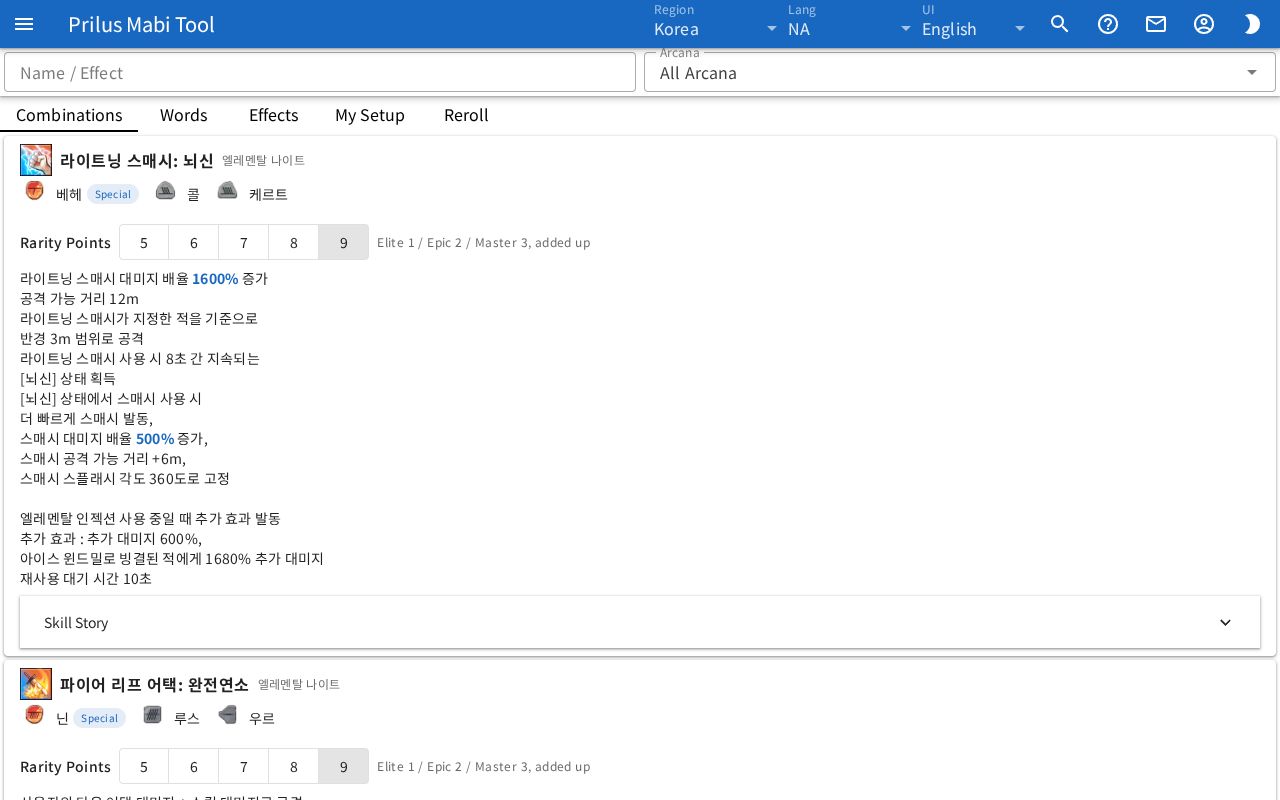
Screen layout
- At the top are the search box and the Arcana box. The boxes shown differ by tab.
- Below that are five tabs: Combinations, Words, Effects, My Setup, and Reroll, in that order.
- Below the tabs is the content of the chosen tab.
The boxes shown at the top for each tab are as follows.
| Tab | Boxes at the top |
|---|---|
| Combinations, Words | Name / Effect, Arcana |
| Effects | Name / Effect, Arcana, Found On |
| My Setup | Arcana |
| Reroll | None |
Basic use
- Choose your Arcana in the Arcana box.
- On the Combinations tab, check that Arcana's combinations and the words they need.
- On the Effects tab, look up the effects words can get.
- On the My Setup tab, put words and effects in each slot to build a setup.
- To reroll the effects of a single word, use the Reroll tab.
Top boxes
- Name / Effect: type to keep only matching entries in the current tab's list. Part of a name also works. Korean names can also be found by their Hangul initial consonants.
- Combinations: search by combination name or Arcana name.
- Words: search by word name and the small text next to it.
- Effects: search by effect description or the name of the skill the effect applies to.
- Arcana: choose All Arcana or a single Arcana. The chosen Arcana is saved in this browser and changes together with the Arcana box on the Arcana page.
- Found On: only on the Effects tab. Choose from All, General words, and Special only.
Combinations
Each combination appears as a card. When you choose an Arcana, only that Arcana's combinations appear.
- At the top are the combo skill icon, the combo name, and the Arcana name.
- Below that are the Ogham words this combo needs, with images and names. Special words have a Special tag.
- Press a score in Rarity Points to see that score's effects below. At first the highest score is chosen. Next to it is the note "Elite 1 / Epic 2 / Master 3, added up".
- For combos with a skill story, press Skill Story at the bottom to expand it.
Words
At the top is the Synthesis, Fragmentation, Reroll card, and below it each word appears as a card.
Synthesis, Fragmentation, Reroll
- At the top is the note "Combine 5 words of the same grade to get 1 of the next grade. All 5 alike keeps the name, otherwise the name is random."
- Below that, each grade (Elite, Epic, Master) shows its Gold (G) and the number of fragments from Fragmentation.
- The table below shows the Gold, Fragments, and Materials an effect reroll costs for each Grade and number of Locks.
- Hover over an item image in Materials to see its description. Click it to open the item menu. Menu entries differ by item. See Item menu for details.
Word cards
- The word name is to the right of the word image, with another spelling in small text next to it.
- Next to that are a Special or General tag and the word's grade tag (Elite, Epic, Master).
- Below that, the names of the combinations that use this word are listed as tags. When you choose an Arcana, that Arcana's combinations appear in a different color.
- At the bottom is the word description.
Effects
Each effect that Ogham words can get appears as a card.
- The note at the top says how many kinds of effects can come from general Ogham and special Ogham.
- In Found On, choose General words to see only effects from general Ogham, or Special only to see only effects that come only from special Ogham.
Effect cards
- If the effect has a target skill, that skill's icon is on the left.
- Choose a level in the box to the right of the effect description. Choose Level range to show the description's values as a range from the lowest level to the highest level. Choose a level like Lv.1 to show the values at that level.
- Below the description are an Arcana Skill or Talent Skill tag, a Max Lv.○ tag, and the target skill name.
- Next to them, the Ogham this effect comes from appears as Special and General or Special only.
When you choose an Arcana
Effects are split into the groups below. The number of effects appears next to each group name. Groups with no effects are hidden.
| Group | Effects in it |
|---|---|
| Arcana only | Effects on the chosen Arcana's skills |
| Skills of its talents | Effects on skills that belong to the chosen Arcana's talents. A tag shows which talent. |
| No skill | Effects with no target skill |
| Others | All other effects. Collapsed at first. Expand and collapse with the arrow button next to the group name. |
My Setup
Put words and effects into five Ogham slots for the chosen Arcana. If no Arcana is chosen, "Pick an Arcana above." appears.
Top row
- Awakening Level: choose the awakening level. The number of open Ogham slots depends on the level. Next to it, "Ogham slots ○/5" shows the number of open slots.
- Saved setups: choose a saved setup to load it. Only setups saved for the current Arcana appear.
- Setup name: enter the name to save under. Up to 40 characters.
- Save: saves the current setup under that name in this browser. It can be pressed only when a name is entered. If the same Arcana already has a setup with the same name, the "Overwrite the setup ○?" confirmation window opens. Confirm to overwrite it. Saving a loaded setup again under the same name doesn't ask. After saving, "Saved." appears.
- Delete: deletes the saved setup currently loaded. The "Delete the setup ○?" confirmation window opens. Confirm to delete it. It can be pressed only after loading or saving a setup.
- New: clears all slots and the setup name.
- Copy Link: copies a link that opens the current setup. After copying, "Link copied." appears. If the browser blocks copying, a window with the link appears.
Awakening Level is the same value as the Awakening level on the Arcana page. Changing one changes the other.
Ogham slots
Slots are numbered 1 to 5 on the left. Slots not yet open show "Opens at Awakening Lv.○".
- Choose a word in Word. Choose Empty to clear the slot.
- On the right, press a grade (Elite, Epic, Master). Only the grades that word has appear.
- Depending on the grade, Effect boxes appear below. Elite has 1, Epic has 2, and Master has 3.
- Choose an effect in the Effect box. You can type to search. Only effects that word can get appear, and effects already chosen in the same slot are left out.
- Choose a level in the Level box next to it. It starts at the highest level. If it is below the max level, "○ below max" appears next to it.
- Press Reroll this word to move to the Reroll tab with that slot's word, grade, and effects filled in.
Active Combination
Below the Ogham slots are the combinations the current setup activates.
- If a combination is active, its card appears. Rarity Points is set to the current setup's score.
- If none is active, "No combination is active." appears. Below that, Missing words appear as red tags for each of the Arcana's combinations.
Effects
All effects in the open slots are gathered here. They are split into the same groups as when you choose an Arcana on the Effects tab (Arcana only, Skills of its talents, No skill, Others).
- Each effect shows its value at the chosen level, a "Lv.○/○" tag, and the name of the word it is on. Effects in the Skills of its talents group have a talent name tag.
- If no effects are added, "No effects." appears.
Owned Words
Press Owned Words at the bottom to expand it. Note down the words you have and see whether you can complete a combination.
- For each word, press None or the highest grade you have.
- Below, the words each of this Arcana's combinations needs appear as tags. Words you have show their grade, and words you don't have are red.
- If you have every word needed, the Rarity Points appear as "○ pts" next to the combination name.
- What you note down is saved in this browser.
Compare Setups
Press Compare Setups at the bottom to expand it.
- Choose the setups to compare in the A and B boxes. You can choose Current setup or a saved setup.
- The first row of the table below, Active Combination, shows each setup's combination name and score.
- Below that, each effect shows its level for A and B. Effects that aren't there show "-". For effects that differ between A and B, the cell with a value appears in a different color.
Setups from a link
When you open a link from Copy Link, the My Setup tab opens with that setup filled in. Arcana also changes to that setup's Arcana. If the link can't be read, "Couldn't read the setup." appears.
If you open a link while editing a setup, the message "Opened the linked setup." appears with an Undo button. Press it to go back to the setup you were editing.
Reroll
Reroll the effects of a single word and count the cost.
Top row
- Word: choose a word.
- Next to it, press a grade (Elite, Epic, Master).
- Next to that, whether the word is Special or General and the number of effects it can get appear as "○ effects".
- Start Over: rolls new effects and resets Total to 0. Changing the word or grade also starts over.
Effect rows
Depending on the grade, there are 1, 2, or 3 effect rows. Each row shows an effect and "Lv.○/○".
- Press the lock button on the left to lock that effect. Locked effects don't change when you reroll. Press it again to unlock it. Hover over the button to see Lock or Unlock.
- At least one effect must stay unlocked. If you can't lock any more, "At least one effect has to stay unlocked." appears.
- Press the pencil button (Edit) on the right to choose the effect and level yourself. Choose an Effect and Level, then press Done.
Rerolling and cost
- Press Reroll to get new unlocked effects.
- This Roll next to the button shows the Gold, fragments, and materials one reroll costs at the current grade and number of locks.
- Total below shows the number of rerolls so far and the Gold, fragments, and materials spent, added up.
When you come in through Reroll this word in My Setup, that slot's effects are filled in, and rows with no chosen effect are filled with newly rolled effects.
Good to know
- If the data region has no Ogham data, "No Ogham data for this region." appears.
- Saved setups and owned words are saved separately for each data region.