
Search Auction House Listings
Search the listings on the Auction House. Find them by item name and prefix/suffix enchant, and see the price and options of each listing.
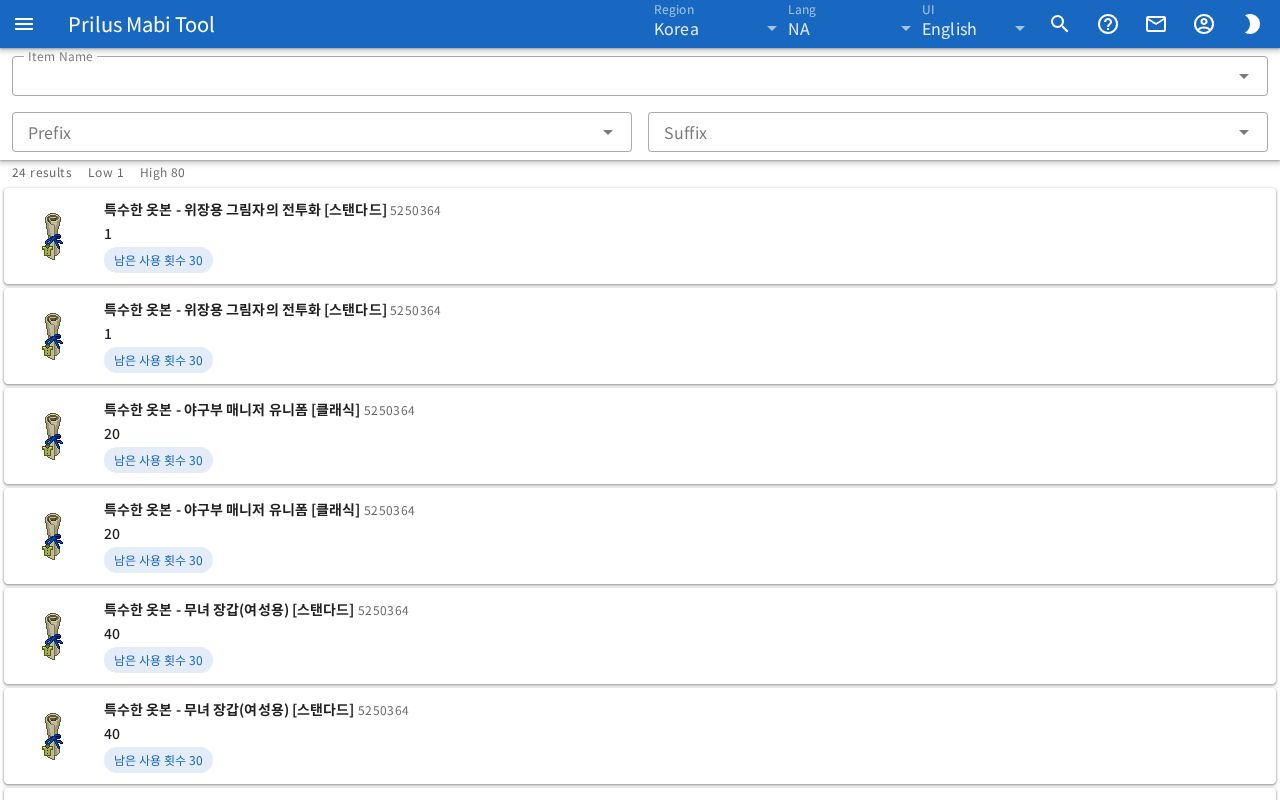
Screen layout
- The Item Name box is at the top. Below it are the Prefix and Suffix boxes.
- Below them is a summary of the search results. It shows the number of listings ("○ results"), the Low price, and the High price.
- Below that is the listing list. Each row shows one listing.
Basic use
- Type the name of the item you are looking for in the Item Name box. You can also pick from the list of names that appears below the box.
- When you stop typing, it searches on its own after a moment.
- To find listings with an enchant, pick an enchant in the Prefix or Suffix box.
- Check the prices and options in the listing list.
Search filters
- Item Name: Search by name or item ID. If several items match the name you typed, listings for all of them are shown together. If no items match, no listings are shown.
- Prefix, Suffix: Click the box to open the list of enchants. Type an enchant name or ID to narrow the list. Press the X button at the right of the box to clear the filter.
- The lists of all three boxes also find matches from part of a name. Korean names can also be found by their Hangul initial consonants. If more than 60 match, only 60 are shown, and "Showing 60 of ○" appears at the end of the list.
- It searches again each time you change a filter.
Reading listings
- Each row shows the item image, name, and item ID. Listings with several items bundled have x and the count after the name.
- The price is shown below that. Bundled listings also show the price for one.
- Listings with options show them below in small tags. Options of the same kind are grouped on one line.
- While searching, a progress bar moves above the listing list.
- If there are no listings, "No items found" and "Try a different search or check back later" appear.
- If the search fails, an error message appears. Press Retry in the message to search again with the same filters.
Hover over an item image to see its name. Click it to open the item menu. Menu entries differ by item. See Item menu for details.
Sharing a search address
- When you search, the search filters are added to the address. Share this address as is to open a page searched with the same filters.
- If the search filters in the address cannot be read, the notice "invalid query" appears.