
Play Effects in 3D
Pick an effect and play it in a 3D view. Change settings such as speed, particle density, and background color, and turn the layers that make up the effect off and on one at a time.
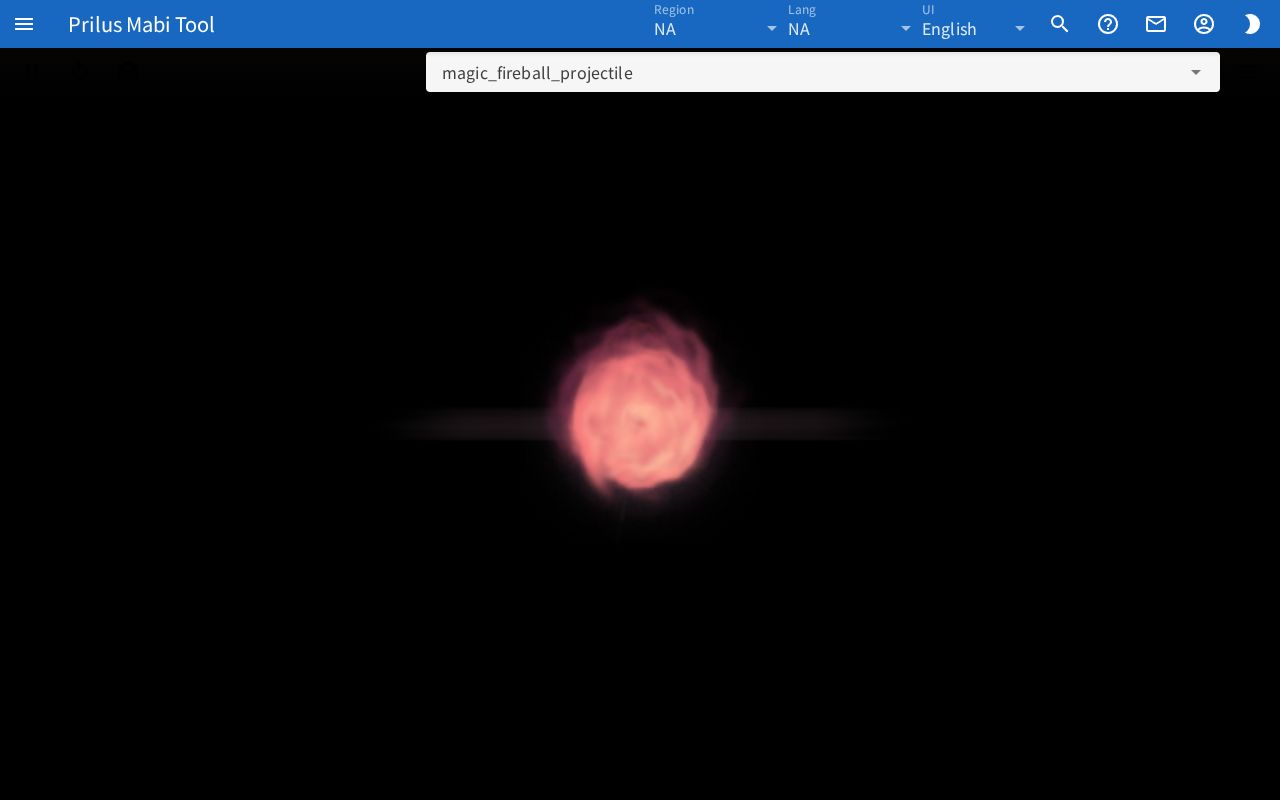
Screen layout
- Center: A 3D view fills the whole page.
- Left side of the top toolbar: The play/pause button, the Restart button, and the Camera button.
- Right side of the top toolbar: The box for picking an effect and the three-line button (Settings).
Hover over a toolbar button to see its name.
Basic use
- Click the effect box at the top right.
- Pick an effect from the list. Type in the box to narrow the list.
- The effect you picked plays right away in the 3D view.
- Drag the 3D view with the mouse to rotate it, and scroll the wheel to zoom in or out.
- To change how it plays, open Effect Settings with the three-line button.
The effect you picked and your Effect Settings are remembered in this browser. The next time you open the page, it starts the same way.
Playback buttons
- Play/pause button: While playing, it becomes the Pause button. While stopped, it becomes the Play button.
- Restart: Plays the effect again from the beginning.
- Camera: Returns the view to its starting position.
Using the 3D view
- Drag with the left mouse button to rotate.
- Drag with the right mouse button to move the view.
- Scroll the wheel to zoom in or out.
- On a touch screen, drag with one finger to rotate, and use two fingers to zoom in or out or to move the view.
Effect settings
Press the three-line button (Settings) to open the Effect Settings panel on the right. Press × to close it. You can also type slider values as numbers in the box to the right.
- Simulation Speed: How fast the effect plays.
- Particle Density: How many particles come out.
- Skip Idle Time: When on, skips quickly past moments when nothing is on screen.
- Bloom: When on, bright areas glow. Change how much they glow with Bloom Strength.
- Background Color: Pick from the list or enter a color value.
- Emitter Motion: Choose how the effect moves while you watch it. Choose from Projectile Preview, Effect path, and Origin. It starts as Origin. Changing it returns the view to its starting position.
- Projectile Duration, Projectile Travel: Shown only when Emitter Motion is Projectile Preview.
Layers
The Layers section at the bottom of the panel shows the layers that make up the current effect as switches. Turn off a switch to hide that layer. The number and names of the layers differ for each effect.
Good to know
- If the effect fails to load, a red error notice appears at the bottom of the 3D view.