
Find Production Recipes
This page helps you look up Mabinogi production recipes. For each item, you can see the production skill and the materials and counts to add at a glance. Use the material tree to work out the materials and cost you need, and try some productions in advance with the craft simulator.
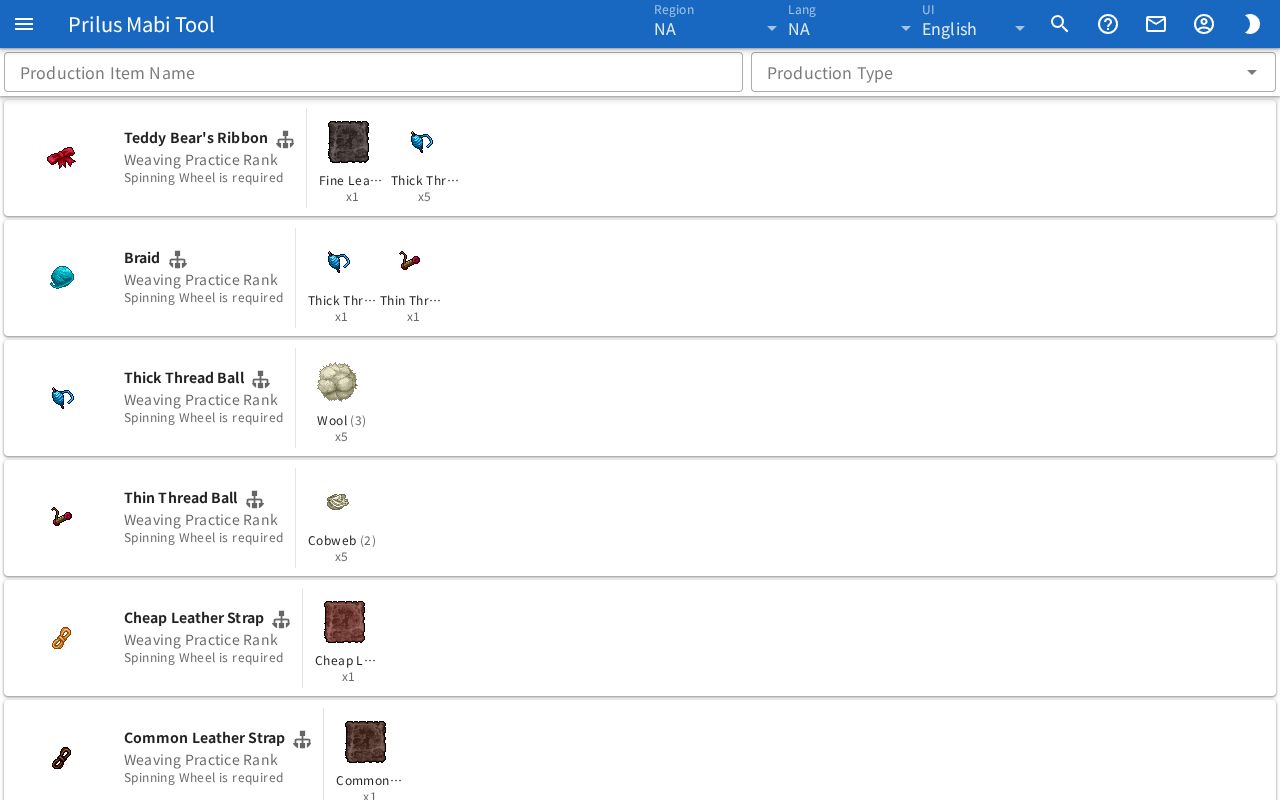
Screen layout
- There are two search boxes at the top: Production Item Name and Production Type.
- Below them is the recipe list. Each row shows one production item.
- The left side of each row has the item image and production details.
- The right side of each row, past the vertical line, has the materials to add.
Basic use
- Type the name of the item you want to make in the Production Item Name box.
- Only items with a matching name stay in the list.
- On the left of the row you found, check the production skill and rank.
- On the right of the same row, check the materials to add and their counts.
- If you want to know the cost of getting all the materials, press the tree icon next to the name to open the material tree.
Finding recipes
- Production Item Name: Type a name to show only recipes with a matching name.
- Production Type: Click the box to open the list of production skills. You can pick more than one. Only recipes for the skills you picked are shown. If you pick nothing, all recipes are shown.
- Some entries for the same skill are split by tool, such as (Spinning Wheel) and (Loom).
- If you use both boxes, only recipes that match both filters stay.
Reading production details
The left of each row shows the production details.
- The item name is at the top. Use the icons next to the name to open windows.
- Tree icon: Opens the material tree. Hover over the icon to see the tooltip Material Tree.
- Calculator icon: Opens the Craft simulator. It appears only for some production skills. Hover over the icon to see the tooltip Craft simulator.
- Below that are the production skill and rank.
- If production needs something else, it shows "○○ is required".
- An item with the set effect tag gets a set effect. Hover over or click the tag to see the effects and values. Bonuses that depend on quality are also shown as "if the quality is above ○○".
- An item with the random stat tag gets stats decided within a range. Hover over or click the tag to see the range for each stat.
- Hover over the item image to see its description. Click it to open the item menu. Menu entries differ by item. See Item menu for details.
Reading materials
The right of each row shows the materials to add.
- Each material shows its image, name, and count (xnumber).
- A material with a number in parentheses next to its name can be filled by several items. The image and name are one of them.
- Hover over or click a material name to see its full name and count. If several items can be used, "(or ○)" is shown with it. On a touch screen, tap the name.
- If there is another vertical line between materials, the materials to its right are added when finishing.
- Material images also show a description and the item menu, the same as item images.
Material tree
Press the tree icon next to the name to open it. It expands the materials needed to make this item step by step and shows the cost of buying them all.
The top has the item name and the total cost.
- If there is nothing to buy, it shows Nothing to buy.
- If some materials have no known price, "+○ unpriced" is shown with it.
- Prices are Lowest KR auction prices.
Material Tree shows the materials step by step.
- For materials you make, their own materials are shown indented below them.
- Press an arrow to expand or collapse that step. At first, two steps are expanded.
- Each row shows the material name, the count needed, and the cost on the right.
- For materials made several at a time, "(○ crafts × ○)" shows how many times to make them.
- A material with a cart icon can be made, but buying is cheaper, so it is counted as bought. Hover over the icon to see Buying is cheaper.
- A material with a green check icon is covered by the count you own.
- For materials with no known price, the cost spot shows one of No listings, Not on auction, or No price data.
Raw Materials gathers the materials in the tree into one row per item.
- Next to the name is how many are needed in total.
- Enter the count you own in the input box, and it recalculates without that many. The tree and the total cost change too.
- To the right are the counts to buy and to make, shown as "Buy ○ · Craft ○". If what you own is enough, it shows Ready.
- At the far right are the price for one and the price for the count to buy.
- The owned counts you enter are saved in this browser for each region. The same counts are used when you open the material tree of another item.
Craft simulator
Press the calculator icon next to the name to open it. Enter conditions such as skill rank and title to preview the production results, and you can also try making it yourself.
The top of the window shows the item image, name, and production skill. Depending on the production skill, the window content is one of two kinds.
- Production where you fill progress: Difficulty is shown next to the production skill.
- Production where the result is decided by quality
- Production whose results cannot be shown displays No data.
When you change a setting, the results change right away.
Production that fills progress
First, choose the conditions.
- Skill rank: Choose the rank of the production skill.
- Crafting Mastery: Choose the rank. If you have none, choose None.
- Title, Option title: Choose the titles you have equipped. If you have none, choose None.
- Dex: Shown only for some production skills. Enter your character's Dex as a number.
- Monday: Turn on when making it on a Monday.
- Rain: Shown only for items affected by rain. Set 0-100% with the slider.
The results are shown next to the condition boxes. If the window is narrow, they are shown below.
- The Success rate is shown in large text.
- The bar below it shows the chances of Big failure, Failure, Success, and Big success split by color. Each chance is also shown as a number.
- Max progress per try, Average progress per try, Fewest tries, and Average tries are shown.
Below that, you can try making it yourself.
- Try once: Works once. Progress changes based on the result. When progress reaches 100%, you cannot press it anymore.
- Until done: Tries until progress reaches 100% and also finishes.
- Reset: Clears the progress and the log.
- The number of tries so far is shown at the right of the button row.
- The progress bar shows the current progress in %.
- When progress reaches 100%, Ready for the final step is shown and you can press Finish. When you finish, Finished is shown.
- The table shows the last 10 tries: the result, how much progress changed, and the progress after the try. Progress decreases are shown in red.
- Materials used: Shows the materials and cost used for the number of tries. When you finish, Finishing is also shown. Prices are Lowest KR auction prices. If some materials have no known price, "+○ unpriced" is shown.
At the bottom are the stats of the finished item. Change Quality to see the stats at that quality. It reads the same way as the Item Simulator.
Finishing minigame
In production that fills progress, press Try minigame to open the Finishing minigame window.
- Choose the Skill rank.
- Press Start. How to play is shown at the top of the board.
- When it ends, the Quality and log are shown below the board.
Press Start again to play again from the beginning. One of the two below appears, depending on the production skill.
| Guide | How to play |
|---|---|
| Hit the five marks while the bar is green | Click the marks on the board while the bar below the board is green. While playing, the mouse cursor is hidden over the board. |
| Drag from each left mark to the right mark | Hold the mark on the left of the board and drag it to the mark on the right, then release. The bar below the board is the time left. |
- When it ends, Quality is shown as a number. If you did not finish, it shows Not finished. If no quality is given, it shows Not calculated.
- The table shows Off by for each mark.
- The minigame where you watch the bar also shows Timing. It is one of Good, Too early, or Missed.
Production decided by quality
First, choose the conditions.
- Skill rank: Choose the rank of the production skill.
- Title: Choose the title you have equipped. If you have none, choose None.
- Promotion title bonus: Can be chosen only when Title is picked.
- Skill quality potion, Quality potion: Enter the potion's effect value as a number.
The results are shown next to the condition boxes. If the window is narrow, they are shown below.
- The Quality is shown in large text, and also as a bar below it.
- Below that is the range of stats that can be added when making it at this quality.
Below that, you can try making it yourself.
- Craft once: Makes it once. The stats added this time are shown at the top of the table. Up to the last 10 are shown.
- Reset: Clears the log of what you made.
- Materials used: Shows the materials and cost used for the number of times made. Prices are Lowest KR auction prices.