
Find Chairs and Try Sitting
Shows chair items in one place. For each chair, see how many seats it has and the seat names, and preview a character sitting on it in 3D.
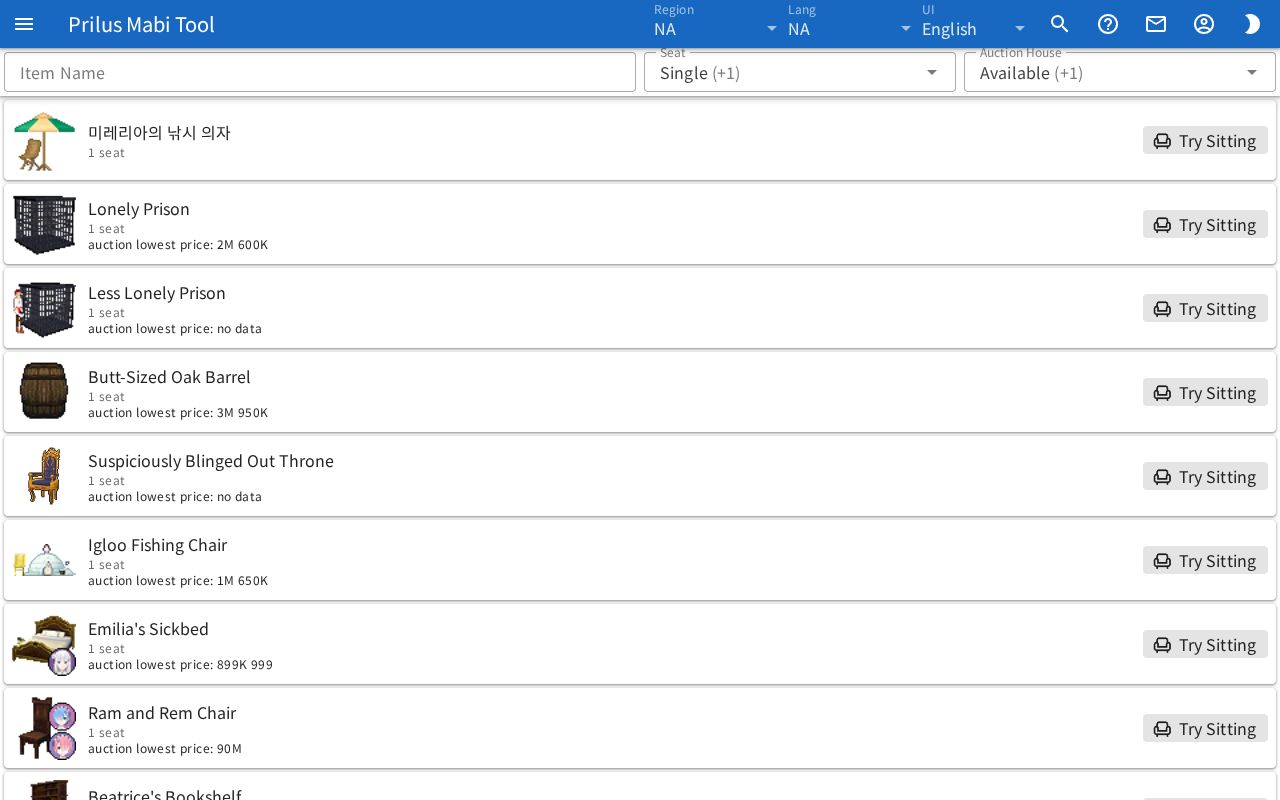
Screen layout
- At the top are three search boxes: Item Name, Seat, and Auction House.
- Below that is the chair list. Each row shows one chair.
Basic use
- Enter the name of the chair you want in the Item Name box.
- To see only chairs for several people, keep only Multi-seat in Seat.
- Check the chair's seat count and seat names in the list.
- Press Try Sitting on the right to see a character sitting on it.
Finding chairs
- Item Name: enter a chair name or seat name to see only matching chairs.
- Seat: choose from Single and Multi-seat. You can choose both together. Only chairs of the chosen kind appear.
- Auction House: choose from Available and Not Available. You can choose both together. Available means chairs that show an auction lowest price in the list, and Not Available means chairs that don't.
- At first both options are chosen in Seat and in Auction House. If you clear everything in one box, the list appears empty.
- If you choose several, the box shows the first entry and (+remaining count).
- When you use all three boxes together, only chairs that match every condition remain.
Viewing the list
- On the left is the chair image. Hover over an item image to see its description. Click it to open the item menu. Menu entries differ by item. See Item menu for details.
- The chair name appears next to it.
- Below that, "○ seats" appears. Chairs with seat names have the seat names after it.
- Chairs that can be found on the auction house show the auction lowest price. If there is no price record, it shows no data.
Try Sitting
Press Try Sitting to open the "sitting on ○○" window.
- Of the characters you made in this browser in the Character Simulator, the first one sits in the chair's first seat. If you haven't made a character, a default character sits.
- Even if the character has a mountable pet chosen, the preview leaves it out.
- To try another seat, choose the chair and seat in the Character Simulator.
There are buttons at the top right of the window.
- Person-with-pencil button (Open in Character Simulator): closes the window and adds the character, sitting in the chair as shown, to the Character Simulator as a new character.
- Film button: saves the view as a GIF.
- Tree button: opens the Hierarchy panel. It lists the parts that make up the model. Press an eye button to hide or show that part.
- Eyedropper button: appears only for models whose colors can be changed. Opens the Color Modify panel. Click a box to pick a color.
- Three-line button: opens the Render Settings panel. Its options are the same as Render Settings in the Character Simulator help.