
Find Titles and Effects
A page that gathers Mabinogi titles in one place. Each title shows its name, type, and effects, and titles with a visual effect can be previewed in 3D.
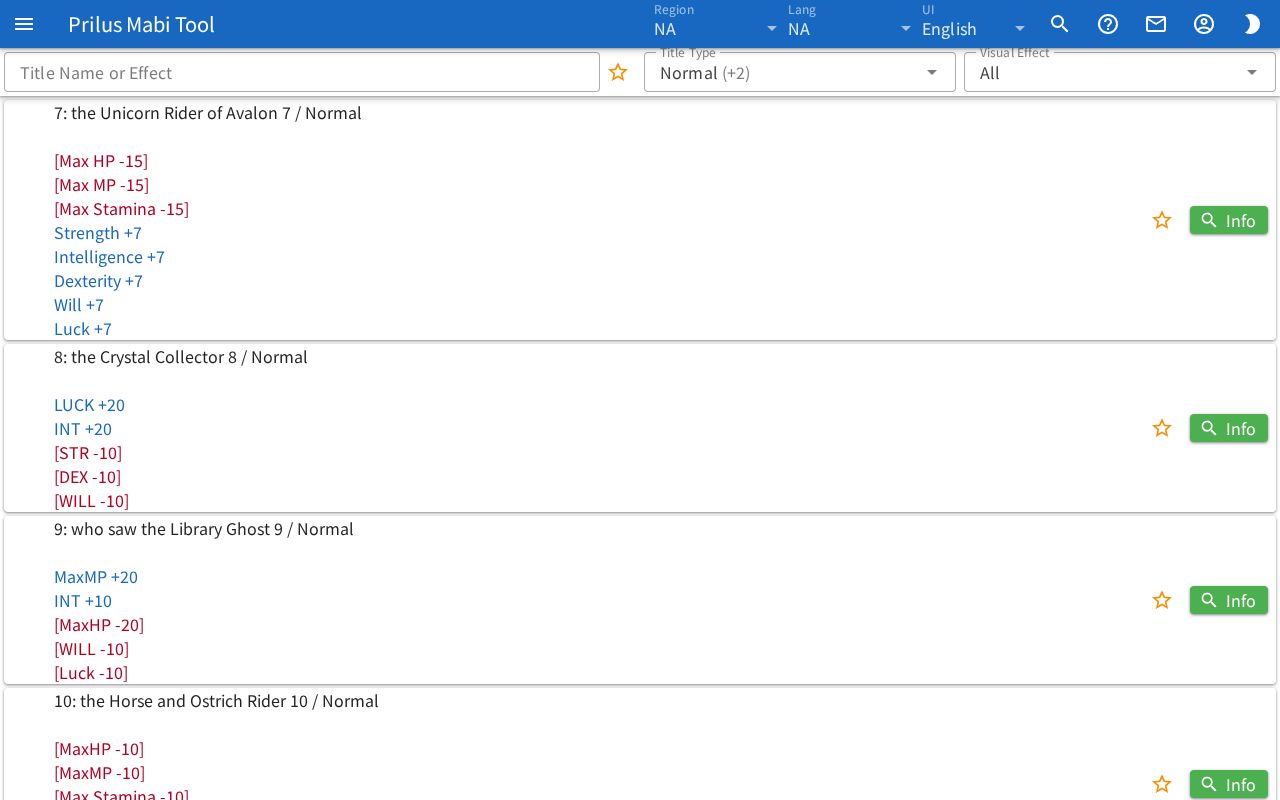
Screen layout
- At the top are the Title Name or Effect search box, the star button (Favorites only), the Title Type box, and the Visual Effect box.
- Below that is the title list. Each row shows one title.
- On the left of each row is the title image.
- To the right of the image, the first line has the title name, ID, and type, and the effects are below it, one per line.
- On the right of each row is a star button. Titles with a visual effect also have an Effect tag and a Preview button next to it. At the very end is the Info button.
Basic use
- Enter a title name or effect in the Title Name or Effect box.
- Only matching titles stay in the list.
- Check the title's effects in the row.
- To see the visual effect, press Preview on the right of the row.
Finding titles
- Title Name or Effect: search by title name, effect text, or ID. Part of a name also works. Korean names can also be found by their Hangul initial consonants. The best matches come first.
- When you enter search text, the number of titles found appears on the right of the box as "○ results". Press × to clear the search text.
- The search text is also added to the address. Open that address as is to see the list found with the same search text.
- Title Type: choose from Normal, Part-Time Job, Normal 2, Transform, Pet, Fake, and Secondary. You can choose several together. At first Normal, Normal 2, and Secondary are chosen.
- If you choose several types, the box shows the first type and the remaining count, like "(+2)".
- If you choose no type, titles of all types appear.
- If no title matches the conditions, "Nothing matches." appears.
- Visual Effect: choose from All, With Effect, and Without Effect.
- Press the star button (Favorites only) to see only your favorite titles. Press it again to see all.
- When you use several conditions together, only titles that match all of them remain.
- What you choose in Title Type, Visual Effect, and Favorites only is saved in this browser. It stays the same the next time you open the page.
Viewing titles
- Titles with several names show them joined with " / ".
- Normal titles have the ID added once more before the name.
- Effects appear one per line. Lines wrapped in "[ ]" appear in red text.
- Press Info at the far right of the row to open the "title ○○ ID" window. The title's detailed info appears as a list you can expand.
Favorites
- Press the star button on the right of a row to add the title to favorites. Press it again to remove it.
- Favorites are saved in this browser. They are saved separately for each data region.
- Titles you add to favorites here also appear as favorites in the Title and Option Title lists of the Character Simulator.
Effect preview
Press Preview to open a window named after the title. It shows in 3D a character wearing this title's visual effect.
- The character is the first one in the character list of the Character Simulator. If no character is saved in the Character Simulator, a default character is shown. The character's name appears at the top left of the window.
- The buttons at the top right of the window are, in order: pause (press again to play), replay from the start, and fit the camera to the full body.
- In the 3D view, drag with the left mouse button to rotate, and drag up and down with the right button to change the viewing height. Scroll the wheel to zoom in or out.
- On a touch screen, drag with one finger to rotate, and spread or pinch two fingers to zoom in or out.
- If the effect can't be shown, "Effect preview unavailable." appears. If the character can't be loaded, "Character preview unavailable." appears.