
Astrology Setup Planner
Place effects in Celestial Conjunction and put tarot cards into Hand of Destiny. The Dominant Aspect, each skill's aspect, and the skills that activate each card in your hand show up right away. Whether an effect can be placed follows the same conditions as the game. Switch between the two screens with the tabs at the top.
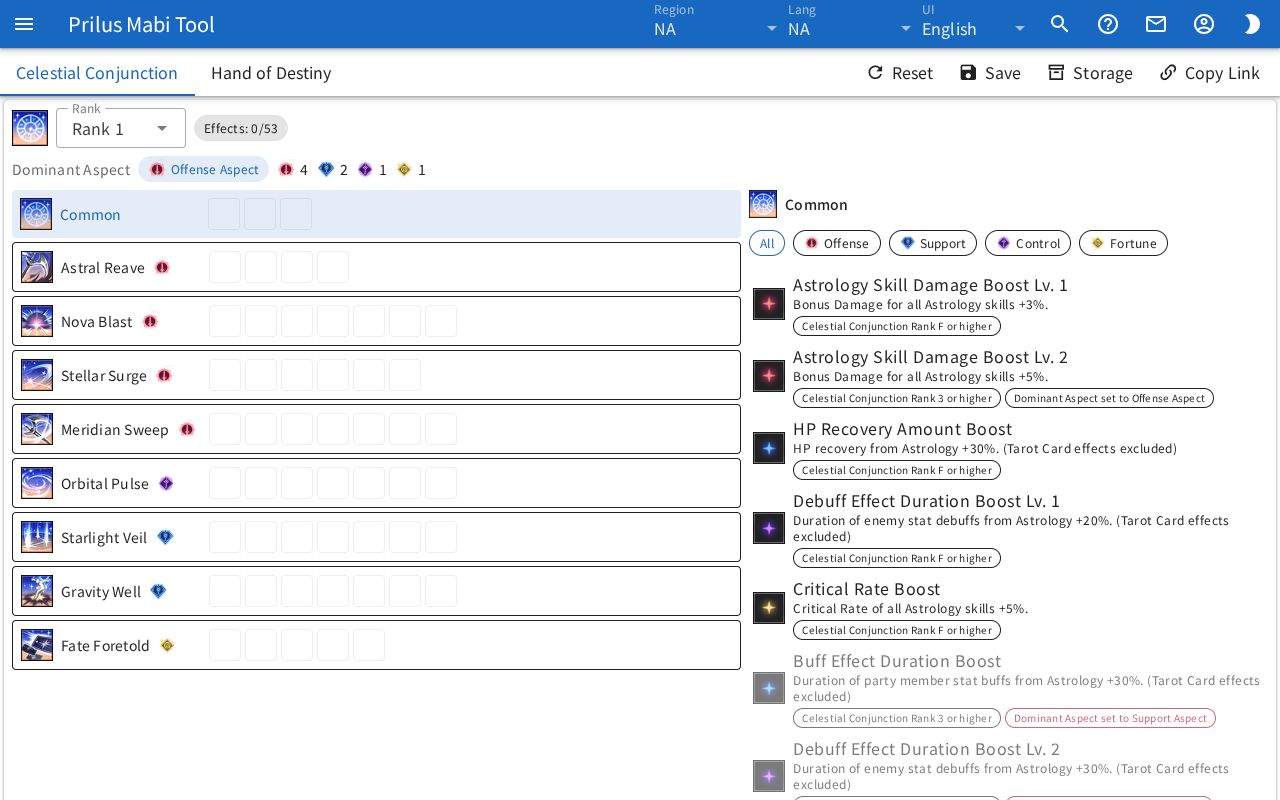
Placing Celestial Conjunction effects
- Pick your Celestial Conjunction rank in Rank on the Celestial Conjunction tab. The number of effects you can place and the effects you can use change with the rank.
- Press the Common row or a skill row to select it. The effect list shows only the effects that can go in the selected row.
- Press an effect to put it in an empty slot of the selected row. If it cannot be placed, a message tells you why.
- Press an effect icon in a row to remove it.
- Faded effects cannot be placed with your current rank or Dominant Aspect. The chips under an effect show its requirements, and unmet ones turn red.
- The icon next to a skill name is that skill's aspect. A lock means the skill's aspect is forced.
- If placing or removing an effect changes the Dominant Aspect, effects that need the old aspect can be removed with it. Use Undo in the message to go back.
- Lowering the rank keeps placed effects, and the ones you cannot use at that rank get a red dot.
- Press a skill icon to open the skill info window.
Adding Hand of Destiny cards
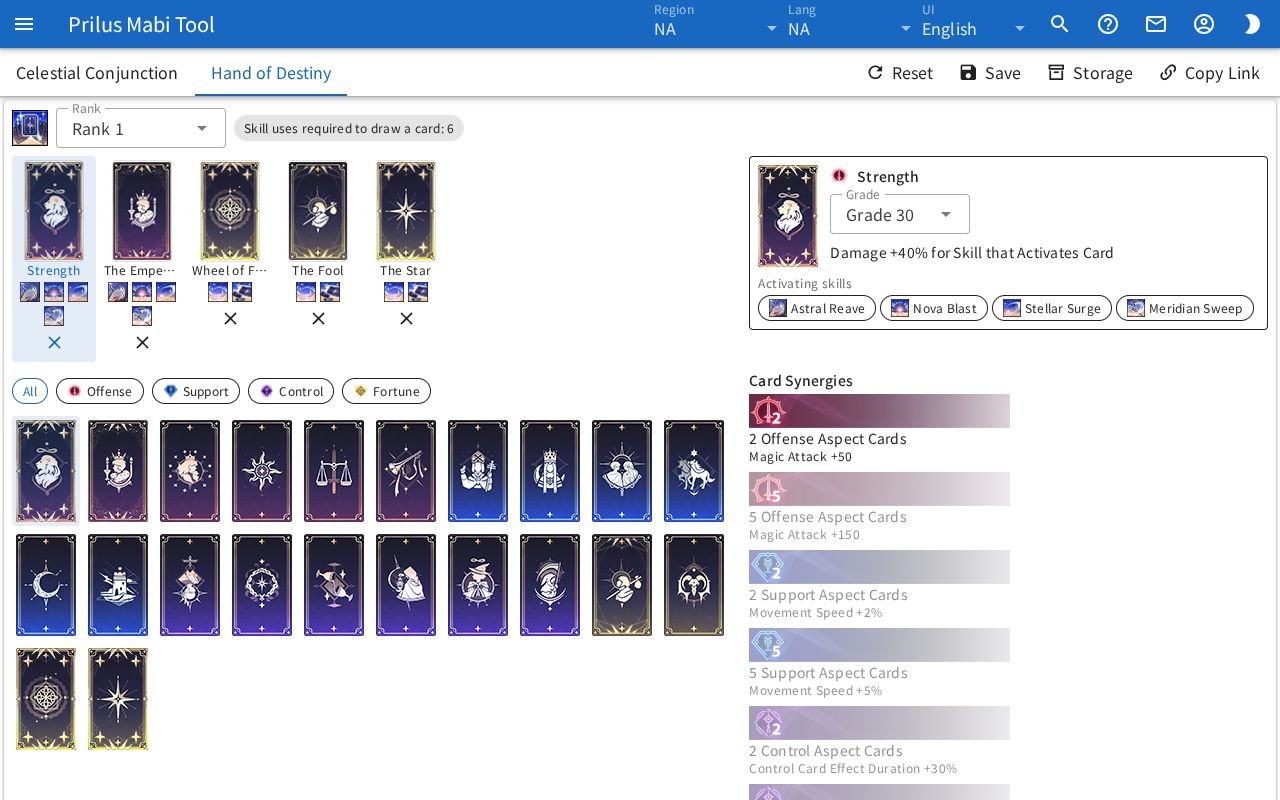
- Pick your Hand of Destiny rank in Rank on the Hand of Destiny tab. The number of hand slots, the skill uses required to draw a card, and the synergies that can activate change.
- Press a card picture to pick up that card. Its description and Grade appear. Then press a hand slot to put it in that slot, or press Add to hand to put it in the first empty slot.
- Press a hand slot first, then a card picture, to put the card straight into that slot. Pressing a card in your hand shows its description.
- Pick a Grade to change the numbers in the card description and the card frame to that grade.
- The skill icons under a card in your hand and the Activating skills in the card description are the skills that activate that card. Changing a skill's aspect in Celestial Conjunction updates them right away. A red mark appears when no skill activates the card.
- Synergies activate based on the number of different cards of the same aspect. The same card in two slots counts as one.
Saving and sharing
- The setup you are working on stays in this browser without pressing Save, so you can continue next time.
- Press Save to put the current setup in Storage. Press an entry in Storage to load it, and use the trash button to delete it.
- Use Copy Link to share the current setup as a link. Card grades are not included in the link.
- Reset empties the placed effects and your hand. Ranks stay as they are. Use Undo in the message to go back.
- Setups, Storage, and card grades are saved in this browser, separately for each region. Sign in from the account menu and press Turn on sync to keep using Storage and card grades on other devices.