
Glyph Effects and Formulation
See the effects a glyph can have with their values at each level, and calculate which levels you get when you formulate an imprint and the chance of getting the effect you want. You can also plan your glyph sets ahead.
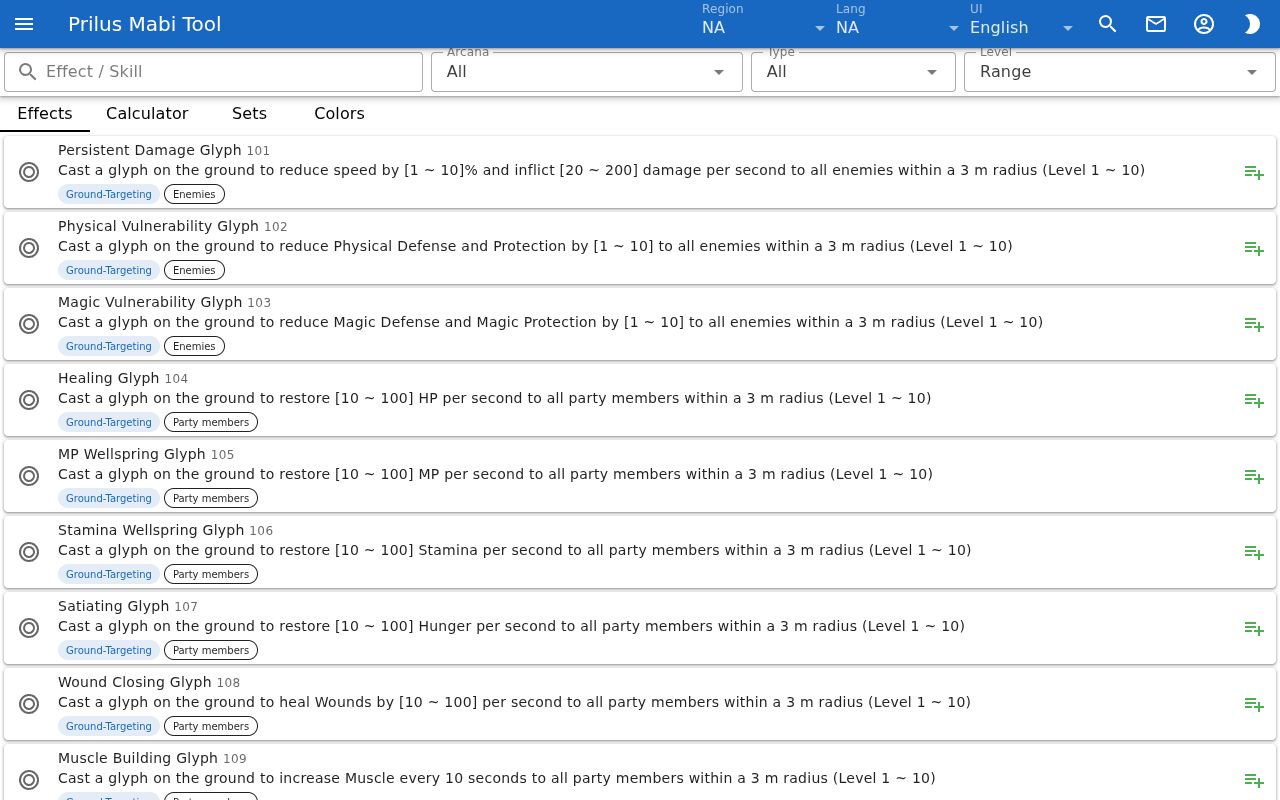
Finding effects
- On the Effects tab, type an effect or skill name in Effect / Skill.
- Pick an Arcana to split the effects used by that Arcana into Arcana Skill, Talent Skill, and Common.
- Pick a Level to see the values at that level, or Range to see the values from the lowest level to the highest.
- Press a skill name to open the skill info window. Press the Glyphs chip in the skill info window to open this page showing only that skill's effects.
Formulation calculator
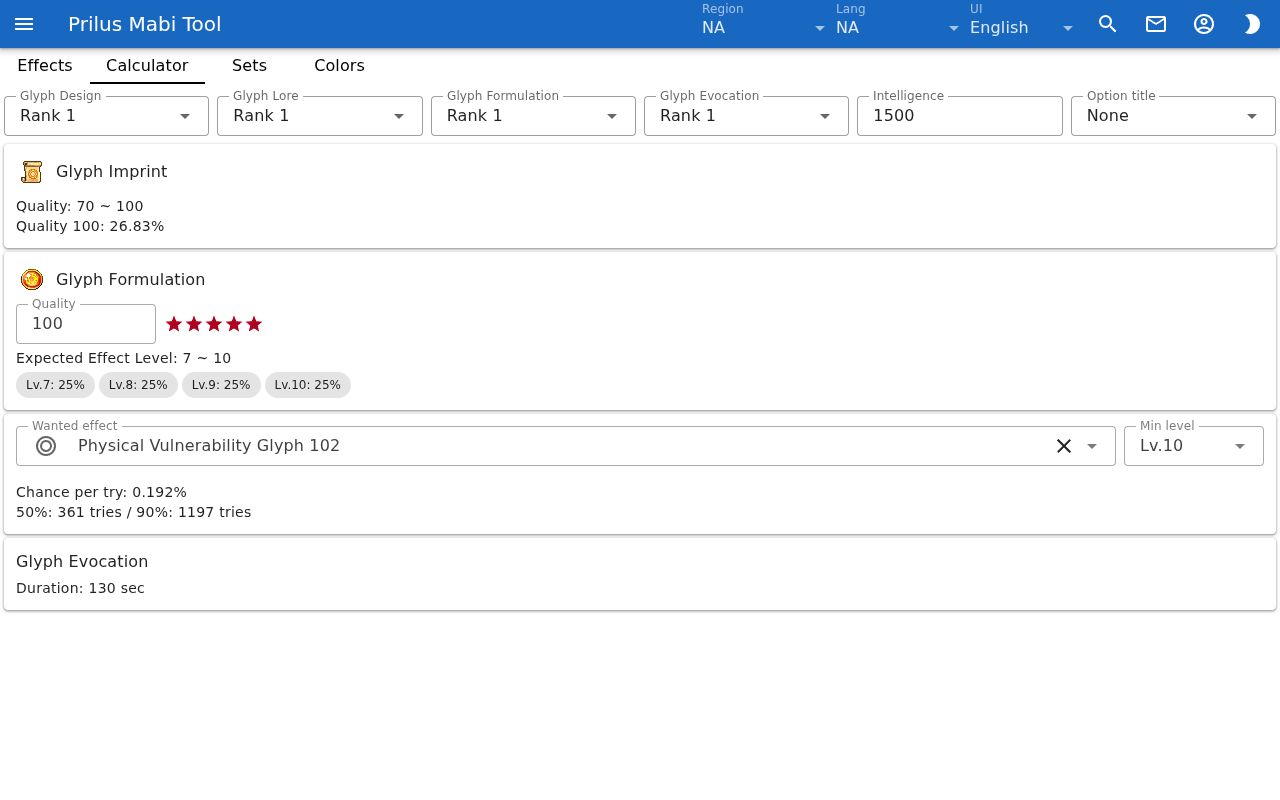
- On the Calculator tab, pick your glyph skill ranks, Intelligence, and Option title to see the Quality range you get when designing an imprint and the chance of Quality 100.
- Enter the Quality of the imprint you will formulate to see its stars, the Expected Effect Level, and the chance of each level. A Quality 100 imprint shows red stars.
- Pick a Wanted effect and Min level to see the chance of getting that effect at that level or higher in one formulation, and how many formulations it takes to get it with a 50% and 90% chance.
- If the chosen Glyph Formulation rank cannot formulate an imprint of that quality, Cannot formulate and Required rank appear.
- The results only use the ranks, Intelligence, and Option title you pick. Bonuses from equipment and the like are not included.
- Duration is based on the Glyph Lore and Glyph Evocation ranks you pick.
Building sets
- On the Sets tab, press a slot and pick an effect from the list on the right. On a narrow screen, pressing a slot opens a picker under that set.
- Pick a level for each slot to see the values at that level.
- A set can hold only one kind, Ground-Targeting or Self-Targeting, and each effect only once. Effects you cannot add are not listed.
- On the Effects tab, press Add to set to put the effect straight into an empty slot, starting from the chosen set.
- Your sets are saved in this browser, separately for each region. Use Copy link to share them, and after Reset you can undo it with Undo in the notice.
Good to know
- The Colors tab shows the colors you can pick in Glyph Design, with the rank and the ink they need. Press an item image to open the item menu.
- In the item menu of a Glyph, a Glyph Imprint, or a Magic Ink, press Glyphs to open this page.